Fast & Secure Method to Import PST to eM Client on Windows
Introduction: Practically, there isn’t any direct method to move PST to eM Client on Windows. As eM Client is a program in which you can handle email accounts and connect multiple email services like iCloud, Exchange, or Yahoo with your inbox, calendars, tasks, and contacts all in one place. As PST files are not supported by eM Client, you need to switch from PST to EML format to open your Outlook PST data in eM Client, and if you have been suffering from the complexity of Outlook, slow performance, and difficult email migration. Looking for speedy and safe ways to import PST to eM client? You should read this article without any further thoughts, as this article covers why and how you can access a PST file in eM Client, the appropriate methods, and a guide. Let’s get started without wasting any more time.
Download the Free Demo Version
Why Import PST to eM Client?
There are several main reasons to move PST files to eM clients, which are mentioned below.
- If you want better backups, data protection, and encryption that eM Clients offer throughout the data import and use, it’s a great choice to move from PST to eM Client for enhanced security and privacy.
- Outlook offers limited compatibility, and for seamless cross-platform compatibility, you can move to eM Client and work with Windows efficiently.
- As eM Client is known for managing the mass of mailboxes swiftly, while offering instant search and email handling, compared to it, Outlook's performance is slow.
- If you work with eM Client, you can get access to its rich features like combined emails, calendars, contacts, and tasks with cost-effective plans, which can make your tasks much more trouble-free.
Transform PST to eM Client with the Manual Method.
In the manual method, you have to run each step of the process manually, as there are no automated steps in it. As there isn’t one exact method to convert PST to eM Client manually. You need to export the PST file to the EML file format and then you can move the EML file to eM Client and access the PST data in eM Client. This process can be very slow and time-consuming and highly risky to use. You can suffer from data corruption, format, and attachment loss. First, let's know how you can convert PST to EML and then how you can access EML in eM Client.
Method1. Export PST to EML format by Outlook
For this process, you need to install MS Outlook, an accessible PST file on your system.
It works well with light PST files but can harm folder structure and hierarchy and take hours and days to complete.
- Go to Outlook and File>Open and Export>Open Outlook Data File. Search and choose a PST file now PST folders will appear in Outlook’s sidebar.
- On your system, create a folder to save EML files.
- Open the PST folder with all emails you want to move, select single or multiple emails to export.
- Drag the chosen emails from Outlook and drop them into your converted EML folder.
- Each email will be saved as an individual .eml file automatically.
- To verify, open the folder that contains all your saved EML.
As PST files are imported into EML format, you can directly open these EML files in eM Client, as EML files are supported by it.
Method2. Save the EML file in eM Client through Drag and Drop
Install eM Client on Windows and have access to EML files.
- Open eM Client and ensure the email profile where you email to import emails is set up.
- Create destination folders in eM Client.
- Access the folder containing your EML files, select the folder, and drag them into the desired folder in eM Client.
- To ensure the formatting, content, and attachments are intact open a few emails and check them.
So basically to open a PST file in eM Client you need to run the process in a manner like PST to EML, then eM Client.
Automatic Method to Move PST to eM Client Swiftly
Under this method, everything happens smartly without any hassle, file corruption, or data loss. To run this process, you don’t need to acquire any technical expertise, as it offers a clear, intuitive, and self-explanatory GUI. Which even a beginner can handle without any problem. You can move bulk and batch of PST files smoothly all at once without lag and crash of the system, it ensures all your data is backed up completely during the conversion, offers single and multiple file conversion without losing any attachment, structure, or metadata of the emails. If you are searching for a professional, fast, and reliable tool, then you should give a try to this expert-approved TrustVare PST to EML Converter which delivers accurate and efficient results.
Steps for Conversion Tool
Follow these easy and simple steps to complete the process without any extra tool support.
- Step 1. Download and install the tool.
- Step 2. Open and choose file and folder mode.
- Step 3. Select the PST file that you want to export.
- Step 4. Upload the file get a preview of the file in the preview pane.
- Step 5. Tap on Select export options to select the format that you want the resultant file in.
- Step 6. Now set the date filter according to the Delivery date and subjects.
- Step 7. Set the output file location and click on “Convert to EML” button.
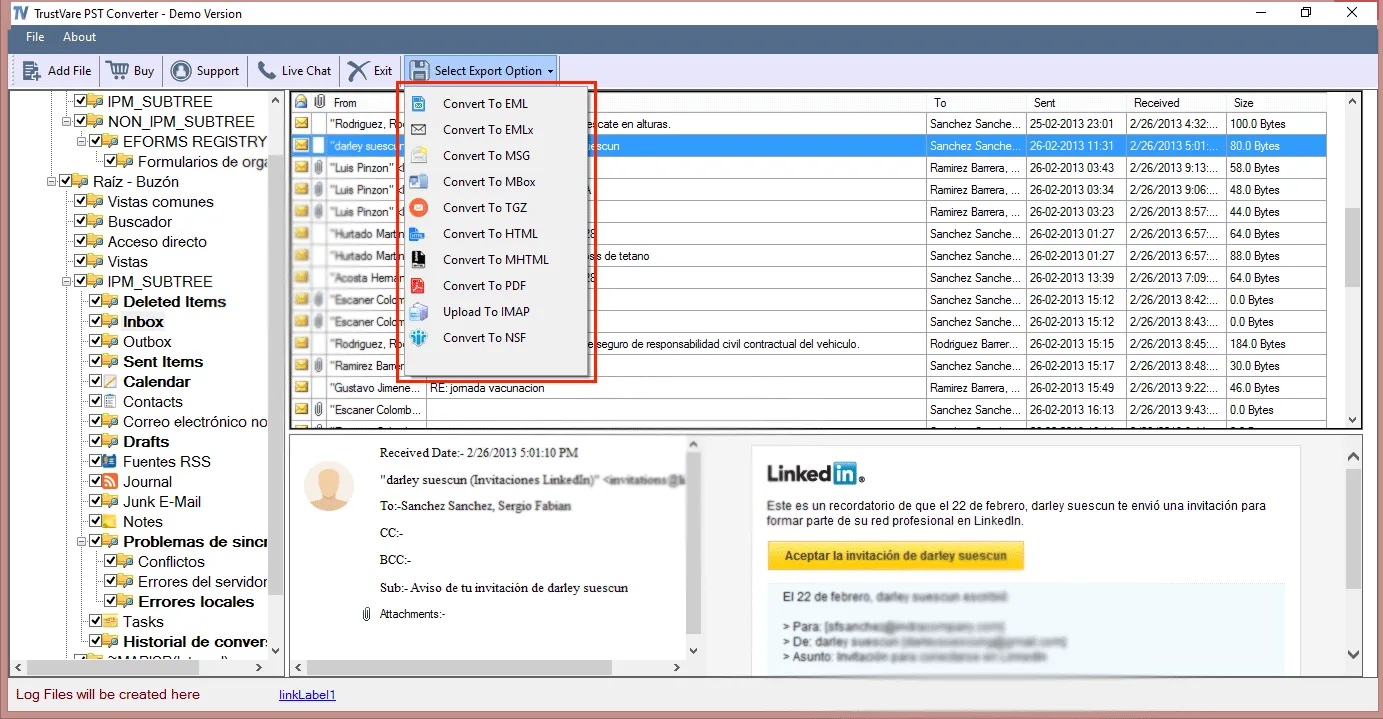
PST file data will be converted into the EML files within a few minutes and you can directly import these EML files into eM Client without any hassle.
Wrap-Up
In this blog, I have discussed all the ways that are available on the web to import a PST file to eM Client in a fast and secure manner on Windows to get enhanced compatibility, access, and security. To move PST eM Client, you first need to convert PST to EML, as there isn’t any exact method to do it, so you can either use a manual method or an automatic tool for it. Both are great in their own way, but the manual method is quite complex, time-consuming, and risky. Unlike an automatic tool offers seamless, efficient, secure, and speedy conversion while maintaining all the data integrity and attachments with advanced filtering like preview, single and multiple file selection, file and folder mode. You can try a free trial version with unlimited access to the licensed version without any hidden charges.
FAQs
Q1. Does this software work with Windows?
Yes, this advanced application is supported by Windows OS, all editions.
Q2. How can I import the converted EML file to eM Client?
As EML files can be accessed in eM Client you can use the drag-and-drop method to directly move the file.
Q3. Can I trust my data with TrustVare PST to EML Converter?
Yes, you can, as it promises complete data integrity and privacy of its client and their data.
Q4. How much time does the manual process take?
There isn’t any fixed range for it, as it can take hours and days to complete the process. Manual methods depend on the size of the PST file, and it can be slow if the PST file is heavy.
