How to Fix Camera Error Code 0xC00DABE0 / 0xA00F4244 in Windows 10?
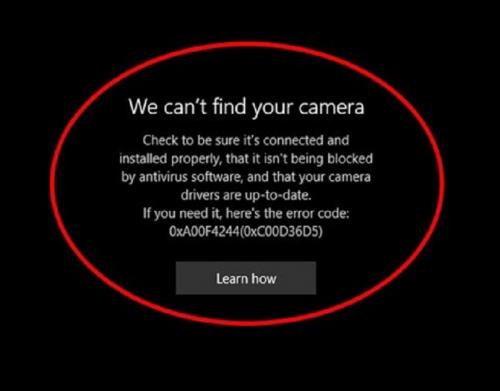
It is quite frustrating when the user is unable to access the Camera app in Windows 10. There are lots of possible reasons for it. But if We Cannot Find Your Camera Error Code 0xC00DABE0 / 0xA00F4244 appears, then listed below ways can help to fix it. If you are one of them facing such issue, make sure to follow each step appropriately to access camera application in Windows 10 effortlessly.
Ways to Solve Camera Error Code 0xC00DABE0 / 0xA00F4244 in Windows 10
Turn on “Let App Use Camera Hardware” Option:
Most of the time, the error occurs when the Let app use camera hardware is turned off. So, all you need to do is turn it on and access it conveniently.
- To enable it, you need to do click on the Start menu.
- Now, search Privacy and hit Enter.
- Choose the Camera option available on the left pane.
- Check if “Let apps use m camera hardware is turned on or off.
- If it is not, then swipe the slider to enable it.
Reset Camera Application in Windows 10:
- Press Window button + I to open the Setting.
- Choose Apps.
- In doing so, a list of installed applications will appear.
- Locate the Camera on the right pane of the Apps.
- Tap and choose Advanced Options.
- At last, select the Reset button and click OK to confirm the changes.
Troubleshoot Windows Store Applications:
- Open the Start menu, type Troubleshoot, then tap on the Enter button.
- After that, click on the Windows Store Apps available on the right side of the screen.
- Select Run Troubleshoot and tap it to open.
- In doing so, it will start scanning your system and will fix it accordingly.
- Lastly, open the Camera application to check the camera error code 0xC00DABE0 / 0xA00F4244 in Windows 10 is resolved or not.
Update Webcam Driver Software:
- Press Window button + R to choose Device Manager.
- Now select the Camera to expand the options.
- Right-click on the HP Truevision HD option available on your screen.
- Hit the Update driver and select Search automatically for updated driver software.
Registry Workaround:
- Tap on Win + R to open the Run dialog.
- Type Regedit and hit Enter.
- On the following page, navigate “Computer\HKEY_Local_Machine_Software\Windows Media Foundation\Platform.”
- Now, right-click on the vacant area of the screen and choose DWORD (32-bit) value.
- Give EnableFrameServerMode name to the new key by putting it data value 0.
Check Your Antivirus:
The antivirus software sometimes can block your Camera from running. In such cases, you need to disable the antivirus. With this, you can easily figure out whether it is causing the problem or not. All in all, if you are unable to resolve your camera problem by using the solutions mentioned above. The last option is to update the broken software again to remove such error.
Ashley Miller is a Mcafee product expert and has been working in the technology industry since 2002. As a technical expert, she has written technical blogs, manuals, white papers, and reviews for many websites such as mcafee.com/activate.
Post Your Ad Here
Comments