How to Transfer Google Forms to Another Account?
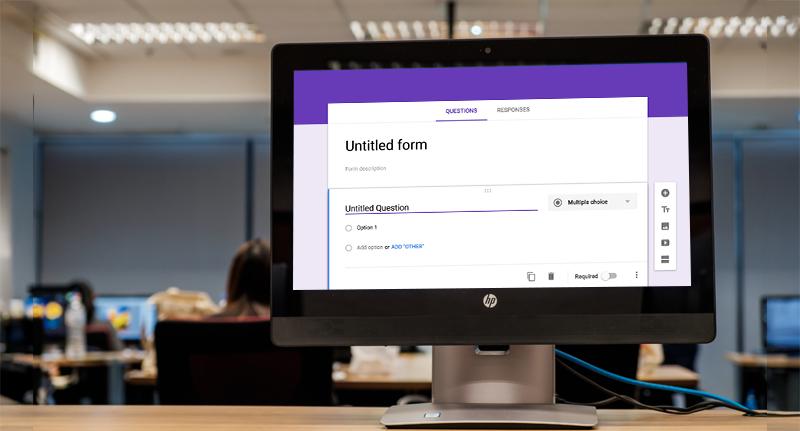
Google Forms are a great option for conducting surveys,
quizzes, and for collecting data. Their editing rights are generally reserved
with the user that creates them. However, if the need arises, users can
transfer Google Forms without losing responses or formatting. Whether you’re
switching roles or teams, collaborating with other people, or just transferring
the form to another colleague, it can be done in a few simple ways.
We’ll walk you through two simple ways to transfer Google
Forms to another account easily. Also, we’ll also list down all the scenarios
in which you might want to move your Google Forms to another account during
Google Drive Migration or only Google forms migration.
What’s the need to transfer Google Forms to another account?
There can be different scenarios in which you might need to
copy Google Forms to a different account:
- Switching roles: When team members switch roles from one person/team to another, transferring Google Form makes sure that another person has full control over the form.
- Collaborating with others: Sharing Google Forms to another account also helps while collaborating with Team members and other Teams in organization.
- Data Privacy: If the original form owner needs to withdraw for privacy reasons or for impartiality, transferring to another account helps protect data.
- Easy accessibility: When the original form owner is away due to long-term leave or illness, giving accessibility to another user prevents workflow from being disrupted.
- Specialized data management: Sharing the form with a team member having expertise in a relevant area improves decision-making. Also, it helps in better content management.
Methods to transfer Google Forms to another account
There are two simple methods available to transfer Google
Forms without losing responses or formatting. First, we transfer the ownership
of the Google Form to another Gmail user. In another method, we make a copy of
the Google Form and share it to another account.
Method 1: Transfer ownership of Google Forms
In this method, we transfer ownership of the Google Forms to
another Gmail user by assigning the editor rights. Follow the steps below to do
this:
- Locate the Google Form in your Drive and open it.
- Click on the Share icon present on the left-side of the Publish button.
- Type the email address of the new owner of the Google Form.
- Change the role of the new owner to Editor and click on
Send.
Note: You can also send a message to inform them of the change or for any other information. - After doing this, click on the Share icon again.
- Click on the dropdown menu beside the name of the person you’ve just added and choose the Transfer ownership option.
- Now click on Send Invitation to share this Google Form with the new owner.
- The selected user will receive an email to confirm the ownership transfer. Click on Accept to make the transfer of ownership official.
Method 2: Copy Google Forms to another account
You can either make a copy of your Google Form within the
form or make a copy of the form in Google Drive, at its location. Creating
copies of your form within Google Drive is suitable for people looking to
produce multiple Google Forms for surveys or quizzes. The copies of these
Google Forms can thus be shared to another Google account during Google Drive
migration. Follow the steps below to make a copy of Google Forms in Google
Drive:
- Go to the location of the form you want to create a copy of.
- Click on the three-dots on the right-side of the document.
- Choose Make a copy from the list of options. A new file will get created with the name of Copy of (file name). This file will be saved in the My Drive folder of your Google Drive.
- Click on the three-dots again and choose the Rename option to change the file name as per requirement.
- Hit Enter to save the file name.
Note: The process to share the copied Google Form will remain same as discussed above. Copy the form and share it with required users by following the steps given above.
Conclusion
There can be multiple reasons why you might need to transfer Google Forms to another account. In this blog, we’ve given some possible scenarios where you might need to shift the ownership of your Google Forms. Also, we’ve given two simple methods to transfer Google Forms without disrupting the original formatting.
Frequently Asked Questions
Q1. Can I directly transfer Google Form to another account?
Ans. No, there’s no direct way to transfer Google Forms to
another Gmail account like Google Docs. Instead, you must make a copy of the
form in the new account or adjust sharing permissions.
Q2. How do I give someone else full editing rights of my
Google Form?
Ans. You can share the form as an editor or you can make a
copy in their account.
Q3. Will all my responses be lost if I transfer the form to
a different account?
Ans. No, you can transfer Google Forms without losing responses
or formatting. If you share the editing rights of your Google Form or if you
transfer the ownership to another user, all your responses will be preserved.
Q4. Can I transfer a form to a different Google Workspace (G
Suite) account?
Ans. Yes, you can, however the new owner also must be in the same
domain, especially if the form is restricted to your organization only.
Q5. How do I make a copy of a Google Form in another
account?
Ans. Follow the given steps:
- Open the form in Google Forms.
- Click: (More) > Make a copy.
- Select the destination account (must be logged in).
Q6. Can I transfer multiple forms at once?
Ans. No, each form can only be copied or shared individually.
Although, if you’ve made multiple copies of your Google Form in Google Drive,
then they can be shared while migrating Google Drive.
Q7. What happens to linked Sheets when transferring a form?
Ans. The linked Sheets remain connected to the form if
you’re sharing the editing rights or while transferring the ownership. However,
if you’re making copies of the form and then sharing it, then a new Sheet is
created for the copied form.
Q8. Can I reclaim ownership after transferring it to another
user?
Ans. No, it’s not possible to reclaim ownership after
transferring it to another user. After the transfer of ownership, the new owner
retains full control over the form, including the option to remove you as an
editor.
Q9. Can a Google Form have multiple owners at the same time?
Ans. No, each Google Form can have only one user at any
point. It’s not possible to have multiple owners.
Post Your Ad Here
Comments