How to Set Up Clash Detection Rules in Navisworks for Maximum Accuracy
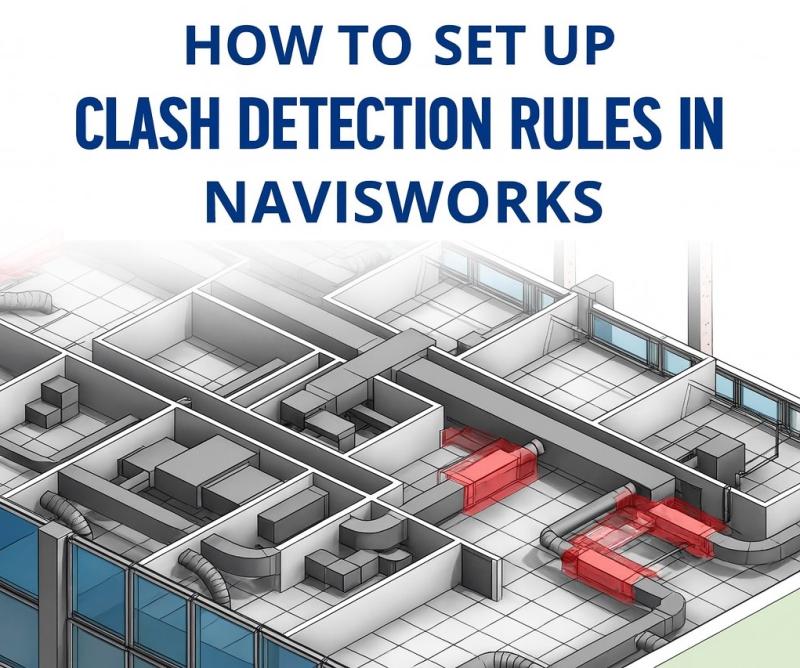
This guide explains how to establish clash detection rules in Navisworks for achieving precise results. Provides step-by-step instructions about rule setup and optimization techniques that help teams achieve better coordination and minimize construction errors.
Navisworks uses clash detection as a critical method to find and solve design conflicts that occur before construction starts. The automated interference detection between architectural, structural, and MEP models in Navisworks enables project teams to stop expensive construction errors from happening on-site.
Correct implementation of clash detection rules in Navisworks produces meaningful results by decreasing incorrect positive findings and enhancing model coordination.
Importance of accurate clash detection rules in BIM coordination
Coordination process becomes more efficient through Navisworks clash detection rules, which help teams use to:
- Reduces unnecessary clashes from insulation and staging elements.
- Helps teams focus on critical conflicts requiring quick resolution.
- Enhances collaboration among different disciplines.
- Improves decision-making during the preconstruction phase.
Step-by-step guide to establishing clash detection rules in Navisworks
The following sequence of actions enables you to establish Navisworks clash rules that maximize your coordination workflow accuracy.
Prepare your models for clash detection
The following steps need to be completed before starting any clash tests:
- Remove all unnecessary objects, annotations, temporary geometry, and non-essential linked files.
- Use a standardized naming system to distinguish disciplines like HVAC and Mechanical Ducts.
- Share coordinates or origin points across all disciplines for accurate alignment.
- Run model validation tools to confirm geometry integrity and element completeness.
Utilized clash detection tools within Navisworks to manage
Clash detection tool operates exclusively within Navisworks Manage because it does not exist in Navisworks Simulate.
- Select “Home” tab followed by “Clash Detective” from the menu.
- Select “Add Test” to establish a fresh clash test.
- Name test with a descriptive title that includes the system comparison and floor level (e.g., “Structural vs. HVAC – Level 2”).
This tool enables users to establish rule-based clash detection tests that operate with high precision.
Define search sets for accurate clash testing
Search sets function as reusable element groups which users can create through property-based filtering (e.g., systems, levels, disciplines).
- The Find Items tool lets users create and save filtered search sets.
- Standardized properties like “System Type” and “Layer Name” are required for grouping.
- Create a “Ducts – Level 1” search set to detect clashes with “Structural Beams – Level 1” only.
The system achieves better performance through this method, which prevents clashes between different system components.
Apply clash rules for better accuracy
Clash Detective dialog contains a Rules tab, which you can access to create specific clash rules for filtering out irrelevant clashes and coordinated items.
- Ignore duplicate clashes between identical elements.
- Exclude items from the same composite object during checks.
- Use property-based filters to create custom rules and ignore insulation or placeholder geometry.
Use tolerance settings to minimize false positives
The distance between elements determines whether they will be classified as clashing objects.
- Set duct-to-beam clearance at 10 mm for realistic tolerance.
- Low tolerance causes false positives.
- High tolerance reduces clash detection accuracy.
Tolerance levels for MEP systems need to be more precise than those for structural components.
Clash test execution follows analysis of results
After establishing rules and tolerance settings, perform the following steps:
- Click Run Test
- Review clash groups and viewpoints
- Identified Critical clashes before clearance or soft clashes.
- Assigning to a function distributes clashes to team members.
- Comments and status tracking enable progress monitoring.
Export and share clash reports
Resolving detected clashes depends on effective communication between team members. Navisworks provides users with the ability to export clash reports through various output formats.
The following reporting formats are available for use:
- HTML or XML reports
- Viewpoints with red lines
- BCF (BIM Collaboration Format) exports for integration
Standardized report format helps stakeholders recognize problems with clarity.
Case Study:
BIM MEP Clash Detection at International Airport in Muscat, Oman
Hitech CADD Services produced 3D MEP models without conflicts for the airport development, which included passenger terminals, office facilities, and multiple building levels. The team worked across different disciplines and time zones to solve 2D clashes in Revit while producing Navisworks clash reports, verifying material and resource accuracy.
The project achieved $7M in cost savings during six months through its collaborative BIM system which led to successful on-time MEP system installation without any change orders.
Deliverables:
- The team delivered 3D MEP models without conflicts through Revit at LOD 400 level.
- MEP Coordination Drawings
- Navisworks Clash Detection Reports

Best practices for maximum clash detection accuracy
Following are best practices for the clash detection process.
- Clash detection should begin before models are fully complete.
- Testing should prioritize hard clashes first, then easier ones.
- Test by separate zones and levels for efficiency.
- Use a Clash Matrix to track discipline and scope for accountability.
- Re-testing should focus on updated areas only.

Common mistakes to avoid in clash detection setup
Errors should be avoided to achieve better accuracy in clash detection results.
- Not using search sets increases manual work and causes inconsistent results.
- Ignoring model hierarchy produces irrelevant clash groups.
- Unresolved soft clashes can cause real installation issues.
- Incorrect tolerance values lead to false positives and negatives in clash detection.
Conclusion: Mastering clash detection rules in Navisworks
Correct setup of clash detection rules in Navisworks brings significant improvements to BIM coordination through maximum accuracy. The combination of model preparation with search set creation, clash rule application, and tolerance management enables teams to achieve better collaboration and error reduction.
The correct implementation of these practices leads to better model quality and better construction results.

Post Your Ad Here
Comments