Transfer Videos between Android Phone and Computer
I believe you all have recorded some videos more or less. And these videos can possess huge storage of your Android smart phone. In order to make space for other data, you can transfer videos from Android to PC. In this way, you can keep the videos while release the internal memory of your cell phone. Isn’t that a good thing? How to transfer videos from Android to PC? The MobiKin Android Video Transfer (Windows/Mac) here can be a good assistant program. It is a third-party desktop application, designed for Android users to sync videos from Android phone or tablets to computer efficiently. It also has the ability to help you transfer other data such as music, photos, apps, contacts and files from Android device to computer with no quality loss. The compatible Android device include the famous smart phones like Sony, Samsung, HTC, Motorola, LG, Huawei, Nexus and ZTE, etc. Both Windows version and Mac version are available now. You can download a version that matches your computer.
As one-stop solution, MobiKin Assistant for Android can help you backup, edit or manage your Android contacts, messages, music, photos, movies, etc. on computer directly.
1.Backup It All Up with One ClickBackup all data from the device to computer with one simple click.
2.Transfer, Edit Contacts & SMS FreelyImport and export contacts list, add, delete or edit contact info, texting or mass texting people on computer.
3.Organize Your Apps without LimitationInstall or uninstall APK files through desktop computer with one simple click.
Backup Apps from Android phones & tablets to computer selectively or in a batch.
Guide to Transfer Videos from Android Phone to Computer
Step 1. Connect your Android phone to the computer and enable USB debugging if you haven’t done this before.
Step 2. Then tick “USB debugging opened” and click “Next” to start to install USB driver on your computer.
When
the detection of your Android phone is finished, the window like this
will pop up. As you can see, the data and information of the cell phone
are displayed on top of the window.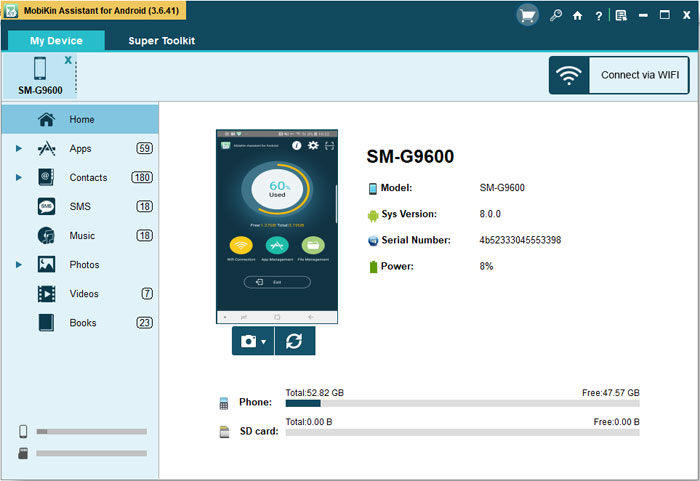
Step 3. Select the “Videos” and preview the items on the
right panel. Tick those you want to move and click “Export” to transfer
videos from Android to PC.
Note: Apart from transferring videos from Android to PC, you can transfer videos from PC to Android by clicking the “Import” button as well.
Post Your Ad Here
Comments