For mobile phone users, Samsung is one of the best and most popular manufacturers of android mobile phones.
Samsung
Galaxy series have been increasingly popular and welcomed by a lot of
smartphone users. In some respects, a smart phone even can be comparable
with the computer, besides that, they can provide you with more
functions and joy beyond computers. When we are enjoy the pleasure they
bring to us, have you ever thought about that Samsung Galaxy
phone has the high risk of being attacked by various viruses, which may
delete the data stored in the phone, when you encounter this situation,
what will you do?
Once you've found something important have been deleted for some reasons, you will be driven mad, especially when the contacts list are disappeared without backup. Needless to say too much, we all know the importance of the contact list on your phone, so, to prevent the tragedy caused by the accidental contact information lost, the best choice is to transfer contacts from your Samsung Galaxy phone to computer for data backup. How to reach it? What is known to all is that the contacts information are always stored in the phone's internal flash card and the SIM card, and due to the limitation of SIM card, almost all contacts info are saved in the phone's internal flash card, and you cannot acess to it directly. Therefore, if you want to backup Samsung Galaxy contacts to PC or Mac, you'd better to find a backup tool. To avoid this, you should make a backup of the data from your phone, for example, the contacts. Here I would like to recommend a tool for you to backup the contacts from your phone, MobiKin Assistant for Android.
Transfer Contacts from Samsung Galaxy to PC/Mac
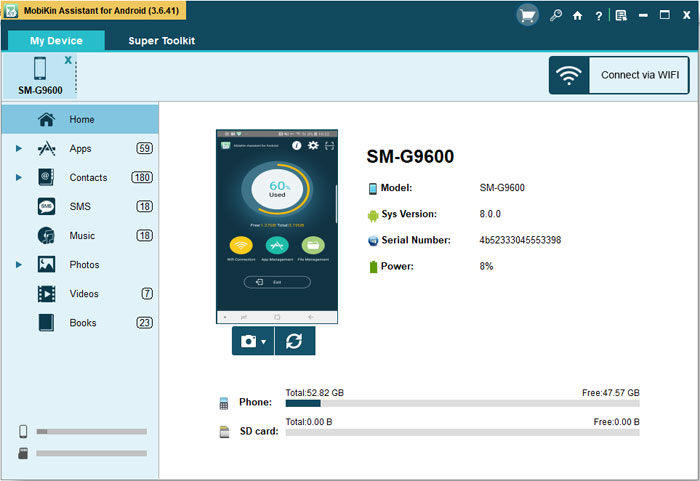
Step 1. run the software and connect your Samsung phone to the computer with a USB cable
Then, the phone can be identified by this program automatically. The parameter information of your phone, including the phone model, system version and storage space size will be shown in the main interface.
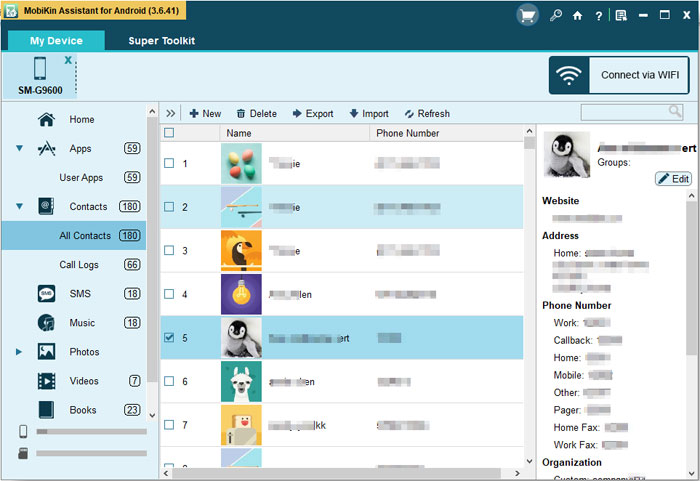
Step 2. click the "Contacts" icon then click "Export" to export and save contacts
Go through and mark all number you wish to backup, and then click "Export" to export and save the selected number to your computer as CSV format very well. Above is the whole settings of transferring contacts from Samsung Galaxy to computer, if you wish to handle it on your Mac computer, you can get the Mac version.
Comments