For
most people, mobile devices can be used for so many different reasons
and purpose, for work or joy, for communicating and knowing news. They
collect a lot of data over long periods of time, and the information
that they collect can be used for a wide variety of reasons and purposes
so it is important that they have alternatives and options available to
them. For example, mobile phone user may want to transfer their contact
information
from their Google Nexus phone to a CSV file so that
they can use the contact information on their desktop computers. Or
simply backup contacts on pc for storage, and share them with co-wokers.
Then, you must need a data transfer program, here comes one tool MobiKin Assistant for Android for you. This program is featured with functional data management abilities you need in managing contacts on your Google Nexus phones, as well as most Android devices like LG, Motorola, Sony and so on. You are able to use it to export all contacts from your Nexus phone to computer for backup, and save the exported contacts as VCF, HTML, CSV or BAK file for further use, and also, you can import VCF, BAK files from computer to Nexus, create and add new contacts and edit full contact information on your pc, also, you can delete contacts you never need anymore.
Now, let's see the guide.
How to Manage/Edit/Import/Export/ Backup Nexus Contacts?
Tips: if you haven't enabled the USB debugging on your phone, the Android data managing tool will be failed to detect your phone. Therefore, you have to follow the instructions below to open USB debugging on your phone.
For Android 2.3 or older, Go: "Settings" < Click "Applications" < Click "Development" < Check "USB debugging".
For Android 3.0 to 4.1: Enter "Settings" < Click "Developer options" < Check "USB debugging".
For Android 4.2 or newer: Enter "Settings" < Click "About Phone" <
Tap "Build number" for several times until getting a note "You are
under developer mode" < Back to "Settings" < Click "Developer
options" < Check "USB debugging"
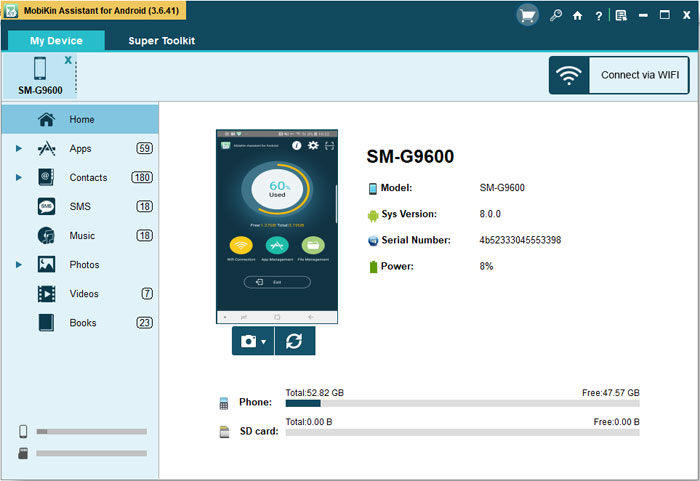
Step 1. Install and run Assistant for Android
After the user installs the contacts management software application -
MobiKin Assistant for Android on their desktop computer, the first step
in the process is to connect the Google Nexus phone to the desktop
computer via USB cable.
Step 2. Enter contacts management window
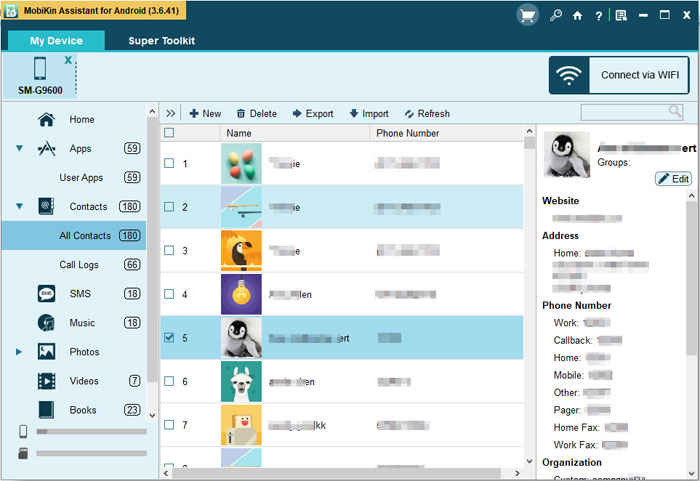
Access the contact window by clicking the Contacts option from the left
panel. Then all contacts on your Nexus phone will be scanned out and
displayed here on the right side window. All managing options are
provided on the above menu bar.
Step 3. Start to manage Nexus phone contacts
Go to the top menu, click "New" button to create new contacts, "Edit"
button to edit existing contacts, "Delete" button to wipe out useless
contacts, "Export" button to transfer contacts from Nexus to computer,
and "Import" button to copy contacts from computer to Nexus.
Comments