How to Take Great Photo with Your Android Phone like Samsung Note 7?
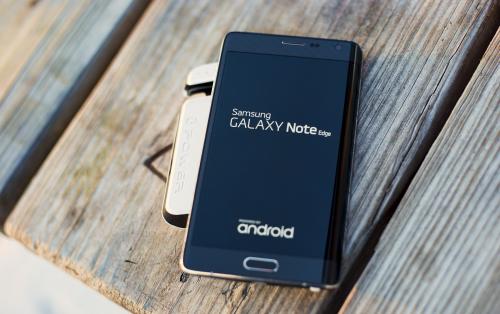
Smartphones can be seen nowhere, as long as people want to shoot a photo, they can take out of a phone from their pocket and get one. But how to get cool photos and share them to social media with friends around? This article will introduce some tricks for you.
1. Keep your lens clean
The lens is susceptible to getting dirty, scratched and cracked with the exposure of the delicate pieces of glass. To some extent, lens is more important than the sensor and the body of the phone. It easily gets dirty, resulting in a blurry image after shooting. Each time you take a picture, please give the lens a quick wipe on your T-shirt first to sweep away any grime.
2. Rule of thirds
This is one of the simplest rules for photography, which will naturally attract our eyes to the images divided into thirds. In this way, the subject of the photo is slightly off-center.
To achieve this, most smartphone cameras have the option of showing a grid of two horizontal and two vertical lines when shooting a photo. The subject of your photo should be at any one intersection of two crossing lines to theoretically get the most visually pleasing photo. Give it a go!
3. Stop using digital zoom
Please do not zoom in unless your camera has an actual optical zoom. Zoom does nothing but enlarge the photo and crop it. You will lose the quality of your pictures after zooming in. You’d better crop the photo after you shoot it, in which way you will still lose the quality though, at least you can play around with it of original quality and make a more rational decision for it.
4. Stop using the flash
Flash photography is very tricky, for casual use, it does more harm than good despite of years of attempts of perfecting it. Even on a DSLR camera, the flash function is generally saved for emergencies. Natural light is always welcome for the photos shooting, which make the pictures look more harmonious.
There is a time and a place for the LED flash on smartphone cameras. Given that it tends to be located very close to the lens, it can have a nasty glaring effect. If natural light isn't quite enough, increase the exposure value (EV) and ISO on your camera. Be aware that waxing ISO will also increase the graininess or 'noise' in your pictures.
5. Use HDR mode
HDR (high dynamic range) is done by taking multiple images of the same frame at different exposure levels, which is a great mode for taking photos showing drastic difference in lighting in the same scene. HDR mode ensures that the lighting and shadows in the photo are evenly exposed. It combines the best and brightest bits of both into one photo.
Note: You need to keep the camera super-steady, otherwise, the photos will come out blurred.
6. Take advantage of post-processing filters
There are plenty of people out there who pour scorn onto all the lovely filters you can enhance your photos with. But for casual smartphone photographers, those retro, black-and-white, Windmere, Islandia, and other filters can really add character to a photo. Most Android smartphones come with a great selection of filters, but if you're running a bit short, try Pixlr for a great selection.
With such beautiful pictures on your phone, if you’ve ever deleted a photo album by mistake or had all pictures lost due to some other reasons on Android devices, you may feel very frustrated about this.
Then you may use Gihosoft Android data recovery software to recover photos from your Android phone, it's free to download , try it out once you get photos lost on the Android phone. The possibility of the photos recovery actually depends on whether the messages have been overwritten or not. Namely, if they were completely overwritten, they will not be recovered ever. Please stop using the smartphone or set the phone into Aeroplane mode in case that your photos are overwritten. The more you use the phone, the more it overwrites the data.
The Gihosoft photo recovery for Android is reliable, here is the tutorial:
Step 1. Run Photo Recovery for Android Program
Step 2. Connect Android Device with Your Computer
Step 3. Scan Deleted Photos and Pictures from Android
Step 4. Preview and Recover Deleted Android Photos

Post Your Ad Here
Comments