How to Restore Data from iTunes Backup to iPhone 7 / 7 Plus?
Everyone is supposed to have regular backup for an iPhone, iPad and iPod or other device. This way, you'll have a backup copy of your information in case your device is ever lost, damaged and overwritten.
Method 1: Restore data from iTunes backup to iPhone 7/ 7 Plus
You can restore iTunes backup to your iPhone at any time. Follow these steps to choose a backup and sync the data to your iPhone.
1. Connect the iPhone to the computer with a USB cable.
2. Open iTunes.
3. If you have a new or erased iPhone, iTunes will prompt you to restore from backup.
4. Otherwise, Control-click on your iPhone under DEVICES in the left menu.
5. Select “Restore From Backup...”
6. Choose the backup you wish to sync and click the Restore button.
Method 2: Move data from iTunes backup to iPhone 7/7 Plus
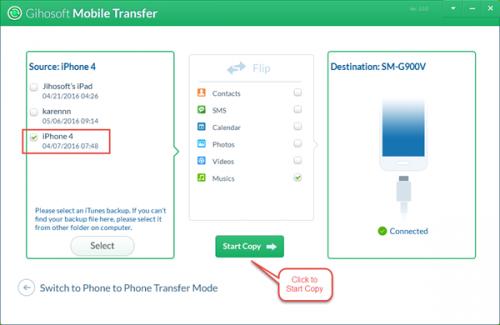
Except for using iTunes, you can also leverage 3rd party software to transfer iTunes backup to iPhone. Among all the software I’ve tried, Gihosoft Phone Transfer is a better program to transfer files from one device to another device. It can copy data from iTunes backup to not only iPhone but also Android phone, plus, it supports files transferring between iPhone and Android device as well.
Step 1. Install the tool on your PC, and launch it.
Step 2. Connect your iPhone to PC and make it appear on the right column (via click on “Flip”).
Step 3. Click “Switch to iTunes to iPhone Transfer Mode” and select the iTunes backup you want to move to the iPhone
Step 4. Click “Start Copy” to transfer iTunes backup to iPhone
When the transferring process is complete, you can check out the backup data on the iPhone.
Post Your Ad Here
Comments