How to Protect your Google, Facebook, and Dropbox Accounts with YubiKey Authentication Key
The authentication device YubiKey is a faster and convenient substitute to the other type of two-factor authentication either it is text message authentication or authenticator app authentication.
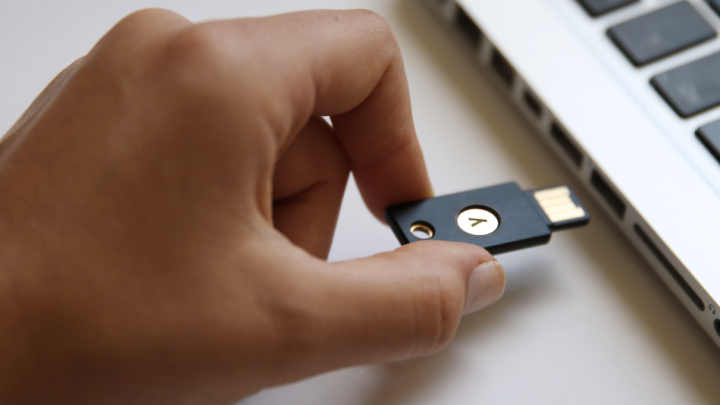
Source: Yubikey
If you’re also looking a quick, affordable and straightforward way to secure your social accounts like Google, Facebook, etc. or any other online accounts, then YubiKey is the best solution.
Steps to Set Up YubiKey for your Google Account
- Navigate to ‘Google.com.’
- Sign in with your Google Account.
- On the opened page, click on your ‘Profile Picture’ at the right top corner.
- Go to ‘My Account’ to access your account details page.
- On the opened Account page, click on ‘Sign in to Google.’
- Select ‘Two-step Verification.’
- On ‘Your second step’ window, click on ‘Learn More.’
- Then select ‘Security key’ and Click to ‘Next’ button.
- Insert your ‘Security key’ to your USB port, and press the ‘Button’ of it.
- And then click on ‘Done.’
That’s it! The key will be set up to your Google Account. Now, next time when you’ll sign in into a new system, it will pop up to authenticate with your USB security key. Hook up the security key and click its button to verify.
Steps to Set Up YubiKey for your Facebook Account
- Open your Facebook Account on Facebook Website.
- Go to ‘Settings’ by clicking on ‘Downward facing arrow’ button.
- Select ‘Security and Login’ option.
- And then click on ‘Edit’ next to the ‘Use two-factor authentication’ to open authentication page.
- To set up your security key for authentication, click on ‘Add key’ next to the Security Keys option.
- Insert your ‘Security key’ to your USB port, and press its button.
- Give a name to your authentication key.
- And click on ‘Set Up Two-Factor Authentication’ to set up.
That’s it! When you login in future, it will pop up to authenticate with your security key.
Steps to Set up YubiKey for your Dropbox Account
- Go to the Dropbox website and open your Dropbox account.
- On the opened page, Click on your ‘Profile Picture’ icon at the top right corner.
- Open ‘Settings’ and then go to the ‘Security’ tab to open security page.
- Enable two-step verification for your Dropbox account, click on the switch of two-step verification to enable it.
- Before you set up your security key for authentication, you need to set up either text message verification or app authenticator. This is for fallback.
- After enabling two-step verification, click on security keys ‘Add’ button.
- Follow the setup process steps as coming on your screen.
- Hook up your security key and press its switch, when asked.
That’s it! Next, you will need your security key to authenticate login of your Dropbox account. If you can’t complete the authenticating process with your security key for any reason, at that time, you can use SMS verification or app authenticator as you’d selected while adding your key.
Harry Williams is a self-professed security expert; he has been making the people aware of the security threats. His passion is to write about Cyber security, cryptography, malware, social engineering, internet and new media. He writes for Norton security products at norton.com/setup.
Post Your Ad Here
Comments