How to Manage Android Phone Apps


First, please connect your devices via USB cables or WiFi following the instructions on the primary window.
How to Install Apps
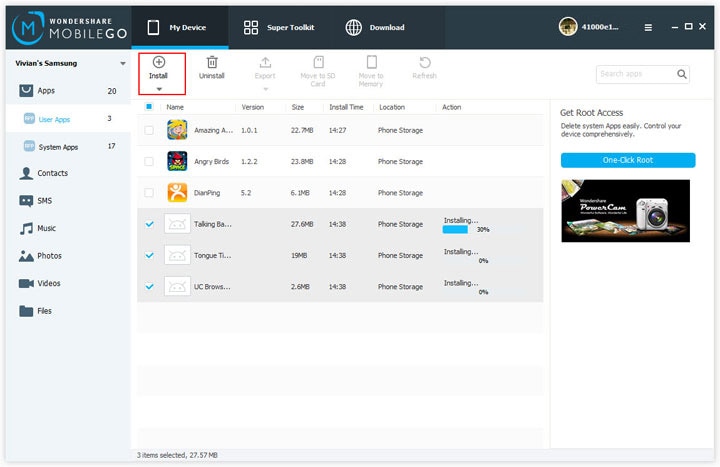
Click Apps on the bottom of the left column. Then, on the App page, click the Install button, located on the left of the menu bar. This will bring up your Windows file browser, from which you can select files to import from your computer or storage device. Click an install package to begin installing, as simple as that.
How to Uninstall Apps
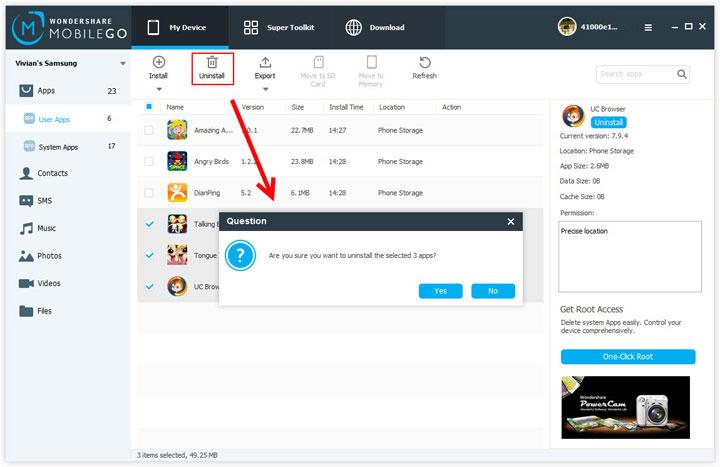
Simply click on an app, then click the Uninstall button on the menu bar, select Yes and you're done.
Note: You are able to uninstall apps preinstalled in system of rooted phones.
How to Export/Move/Share Apps
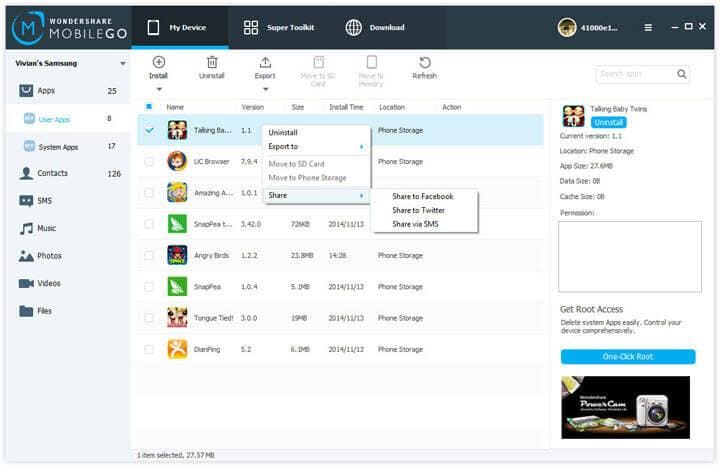
You can click Export to export the selected apps to computer as APK files. And it also allows you to move apps from SD Card to Phone Storage or from Phone Storage to SD Card. Furthermore, if you particularly like one app, you can share them with friends and family via Facebook and Twitter and text messages in one click.
Learn more: How to Manage Android Phone Apps

Comments