How to Import VCF Contacts to HTC Phone?
By transferring all of the contacts from one device to another, it makes it much easier for the users, especially because they do not have to enter each number again manually. This will not only save time but will ensure that accurate information is always available and no unnecessary mistakes have been made. So, for those of you who have just purchased a new HTC smartphone, such as HTC One M9 for yourself or someone else that you know, to solve this problem you can import your contacts to the HTC phone in numerous ways including via a vCard file. vCard file can be an alternative for those that need it since this type of file can be described as a business virtual card. Many people back up contacts as VCF file so that once they lost contacts from their Android phone, they can restored them from the backed up VCF directly.
I am afraid most people don't now how to transfer VCF contacts from computer to HTC mobile phone. Indeed, this can be completed simply if you use Android data manager program like MobiKin Assistant for Android or Assistant for Android (Mac Version) to save data on your computer and import vCard files to HTC One M8/M9/Desire. It is an efficient program that you can use it to transfer data from any Android phone to computer, and vice versa, with easy steps, not complex at all. With it, you can import VCF files to HTC, and even export HTC contacts to VCF. It is compatible with almost overall Android devices, not only HTC, but also Samsung, LG, Sony, Motorola, Google, ZTE, etc. Besides, you can also backup Android data on computer, download files from computer, and restore your Android phone content by using this program.
How to Import VCF Contacts to HTC Phone?
Step 1. Set up your HTC phone
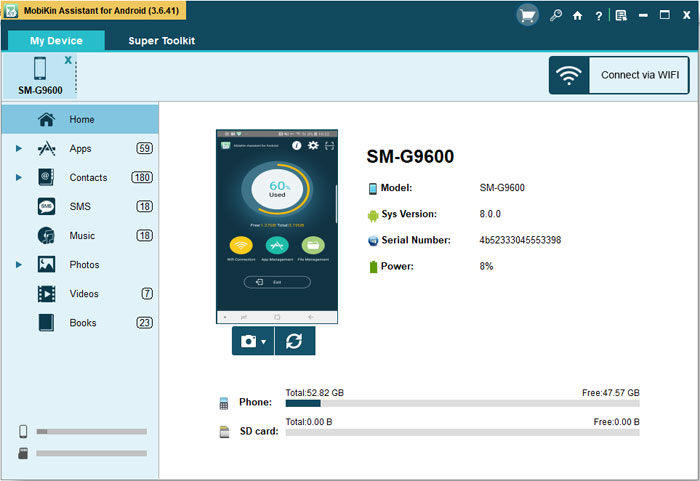
Launch Assistant for Android after download and install it on your computer. Once you finish launching it, connect your HTC mobile phone to the computer via USB cable or QR code. Then the program detects your HTC phone and display it in the interface.
Step 2. Import VCard files to HTC phone
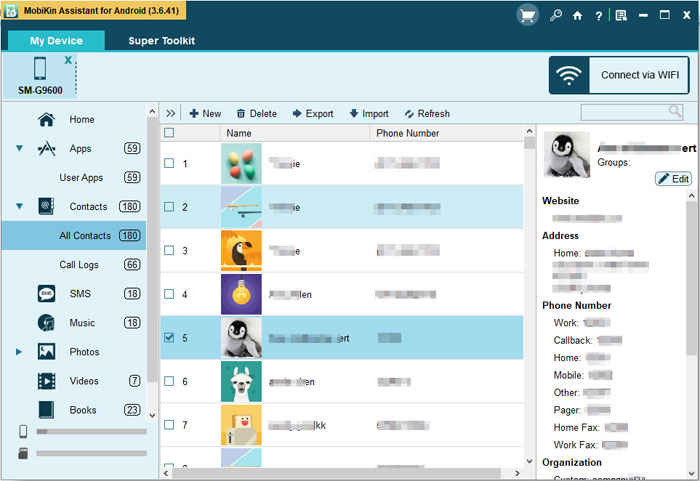
Click "Contacts" category on the left side of the interface. Then, tap on the "Import" option from the top menu, browse for the target VCF files from your computer and choose "Open" to import them to your HTC phone.

Post Your Ad Here
Comments