How to Backup Contacts on Samsung Galaxy S3/S4/S5/S6/S7 ?
As we can see, Samsung Galaxy series including Samsung Galaxy S3/S4/S5/S6/S7, Galaxy Note, is quickly released and occupied the Android smart phone market in recent years. A smart phone even can be comparable with the computer, so it is quite common to find people use a phone rather that a computer to surf on the Internet. And it is also frequently used to contact your family or friends in the daily life. All in all, your Samsung Galaxy phone has the high risk of being attacked by various viruses, which maybe delete the data stored in the cell phone, then what will you do here?
You might keep many important data or files on your phone, such as text messages, contacts, family photos and etc. But, have you backed up those important data to somewhere secure?
We all know the importance of the contact list on your phone, so, to prevent the huge disaster caused by the accidental contact information lost, the best choice is computer for backup. But the problem here is how to reach it? You can store them on your computer, your flash memory card, or your personal Cloud account. Here I’d like to share a tool with you, MobiKin Assistant for Android.
As one-stop solution, MobiKin Assistant for Android can help you backup, edit or manage your Android contacts, messages, music, photos, movies, etc. on computer directly.
1.Backup It All Up with One ClickBackup all data from the device to computer with one simple click
2.Transfer,
Edit Contacts & SMS FreelyImport and export contacts list, add,
delete or edit contact info, texting or mass texting people on computer
3.Organize Your Apps without LimitationInstall or uninstall APK files through desktop computer with one simple click.
Backup Apps from Android phones & tablets to computer selectively or in a batch.
4.Other Highlights of Android AssistantCompatible with almost all popular brands of Android device. Two ways to connect device to computer: USB cable or WIFI.
How to Backup Contacts on Samsung Galaxy S3/S4/S5/S6/S7 ?
Step 1. Link your Samsung phone to the computer or Mac via USB cable. Then launch the program after the installation.
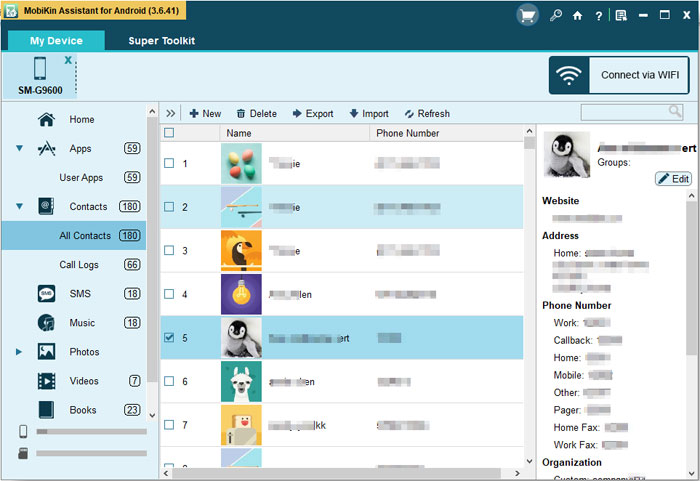
Step 2.Then tick the “USB debugging opened” option and click “Next” to install USB driver on your computer.Step 3. Click the “Contacts” icon from the top of the interface, then
continue to click “All Contacts” on the left side for previewing the
whole contact.
Mark all number you wish to backup, then click “Export” to save the selected number to pc.

Post Your Ad Here
Comments