Convert PST with Attachments to EML for Cross-Client Email Access
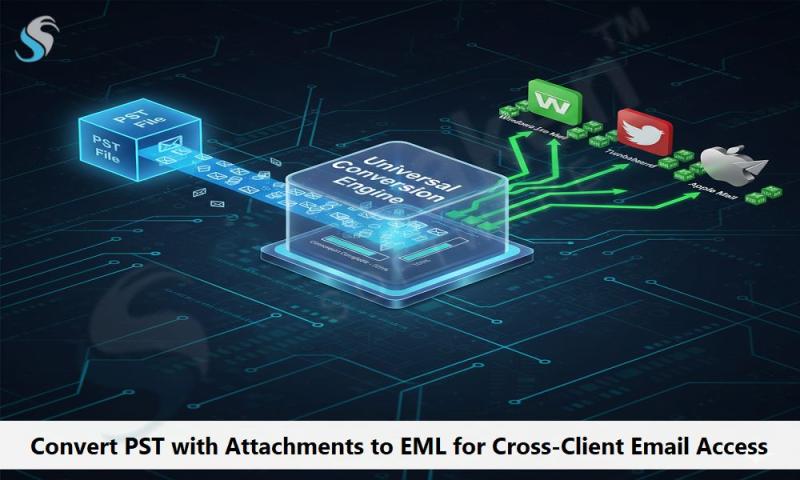
As an Outlook user, you must have your email
data saved in a PST file, which is great for storing multiple emails, contacts,
calendars, and other details in one file for organized look, but PST file
format is only compatible with Outlook and you can’t access it in any other
email clients such as, Apple Mail, Thunderbird, and more. You must move your
file into the EML file format to have cross-platform compatibility, as it
offers a wide range of email client compatibility. So, if you are looking for different
ways to move your PST with attachments to EML for cross-client email access?
You landed on the right article.
You can get information about the different
ways to convert, what the steps of the conversion process are, which method is more
convenient for you, and also the limitations that it carries in this blog, so
let’s dive in without wasting more time.
What is the purpose of Conversion?
There are plenty of purposes to save the PST file to the EML file format. Here I’ll mention four reasons for you.
- EML file format is supported by multiple email clients like Thunderbird, Apple Mail, and more, but as PST is developed by Outlook and only supported by it, you can’t open it on any other platform, and it’s hard to access. It’s a great decision to move the PST file to EML for easy cross platform access.
- As compared to PST files EML files are much lighter as they only contain a single email in one file which makes it simpler to back up, share, and move between email clients and users.
- You can effortlessly export, organize, and search your emails with an EML file, as one file is dedicated to a particular email, and makes the email management flexible for archiving or switching between email clients.
- PST files are very heavy as they contain a mass of emails in one file, which makes them slow to back up, and the risk of corruption rises a lot, so to work with files without corruption, you can move your PST data to EML, move, share, or archive with different clients without any data loss issues.
Manually move your PST file to EML files
Manual
ways are something in which you have to handle each file one by one without any
automated features. These methods are available on the web for free, and anyone
can access them anywhere. You must keep in mind that these methods require
technical expertise or an expert consultant; without it, you can’t perform
them, as it’s quite risky. Without any knowledge, you can accidentally lose all
your valuable data. Manual ways can be complex and time-consuming as the
process depends on the size of the files and can take hours or days to finish.
Let's see what the steps of the manual methods are.
Precautions:
Outlook and Thunderbird set is necessary, can be time-consuming, and may lose
attachments and formatting of the PST file during the conversion.
Method1. Using the Outlook, Drag and Drop Method
- Open Microsoft Outlook and download your PST file.
- Create a fresh folder on your desktop to store the EML files.
- Choose the email you want to export to Outlook.
- Drag and drop the selected email file from Outlook into the desktop folder.
- Every email will be smartly saved as an .eml file.
Method2. Through Mozilla Thunderbird
- Download Mozilla Thunderbird and configure it.
- Go to Thunderbird tap Tools> Import>Mail and select Import From Outlook.
- After it’s done, select the emails in Thunderbird and right-click>Save As, then choose a folder.
- Now, emails will be saved individually as .eml files.
Drawbacks of Manual Techniques
It’s quite important to know about the limitations of any method so that you can be aware of the process and know actually you are actually working with and avoid the mistakes.
- Manual ways are incapable of handling a bulk of emails all at once. If you upload hundreds of PST files at once it’ll freeze as it can only handle one file at a time.
- These methods are a bit technical like setting up Thunderbird and locating files in Outlook can be tricky for beginners so they end up making mistakes.
- Your attachments and embedded images are not secure in these manual methods, as after conversion, you can see visible changes in the formatting of the PST files.
- Selecting and moving the mass one by one manually consumes too much time and effort. Even the process can take hours and days to complete, depending on the size of the PST file time time-consuming and inefficient.
Use the Automatic Method to smoothly switch from PST to EML format.
If
you are searching for a method that can make the Convert PST with Attachments to EML process
simple and efficient without losing any attachments and data integrity, packed
with all high-tech features like bulk and batch conversion of PST to EML all in
one go, filters PST by files and folder mode, preview feature, then I’ll
introduce you to Softaken PST to EML
Converter a professional tool that can save your PST to EML format within
few clicks while preserving all PST email data, attachments, and formatting throughout
the process. This tool is approved by experts for safe and fast conversion with
all attachments present. It also offers a free demo version and an unlimited one-time
investment licensed version with optional updates. Now, let’s dive into the
steps of this tool.
How to use the Automatic Tool?
Download
the app from the website and follow these easy steps for the conversion.
Step1. Install the program and open it on your system.

Step2. Browse PST file to add, and Browse file or folder mode, you can add multiple PST files at once.

Step3.
Now select the format you want your
resultant file into and set.
Step4. Get the preview of the uploaded file in the preview window.

Step5. Press Convert Now to start the process and monitor the real-time preview throughout the process.

Conclusion
This
article is all about how you can convert your PST files to EML files without
losing any of your attachments and get a wide range of access to email clients.
I tried my best to explain all the possible methods for a secure and speedy
conversion process. You can read about the manual and the professional way to
perform the conversion. The manual method is great, but not approved by experts,
as it can convert the PST file to EML, but doesn’t guarantee to preserve the
data integrity, attachment, and format of the original document at all. It can
be very risky and time-consuming as well. If we talk about the professional
ways, it promises complete security and privacy of the user and handles each step
automatically. It offers a simple and modern GUI that even a beginner can work
with ease. You can try this tool anytime you want and explore its features.
FAQs
Q1. Which method is more
trustworthy for my valuable PST Files?
If
you want a trustworthy method, then you should opt for a professional way, as
it’s approved by experts for fast and accurate results without losing any data
or attachments of the original files.
Q2. Should I use the
professional method over, the drag-and-drop Outlook method?
You
can use whichever method you want that fulfills your work needs. Drag and drop
is ideal for light PST files, but if you have bulky files, it will corrupt them
and even lag or crash Outlook, which a professional method can handle with ease
within a few minutes.
Q3. How preview of uploaded
PST files a valuable feature?
To
know exactly what you are exporting and which files needs to be the changed,
you can get a clear view of them in the preview pane and visually examine the
files, which makes it valuable. With it, you can avoid saving unwanted PST
files to EML.

Post Your Ad Here