How to Create Custom Banners for Websites with a Banner Editing App
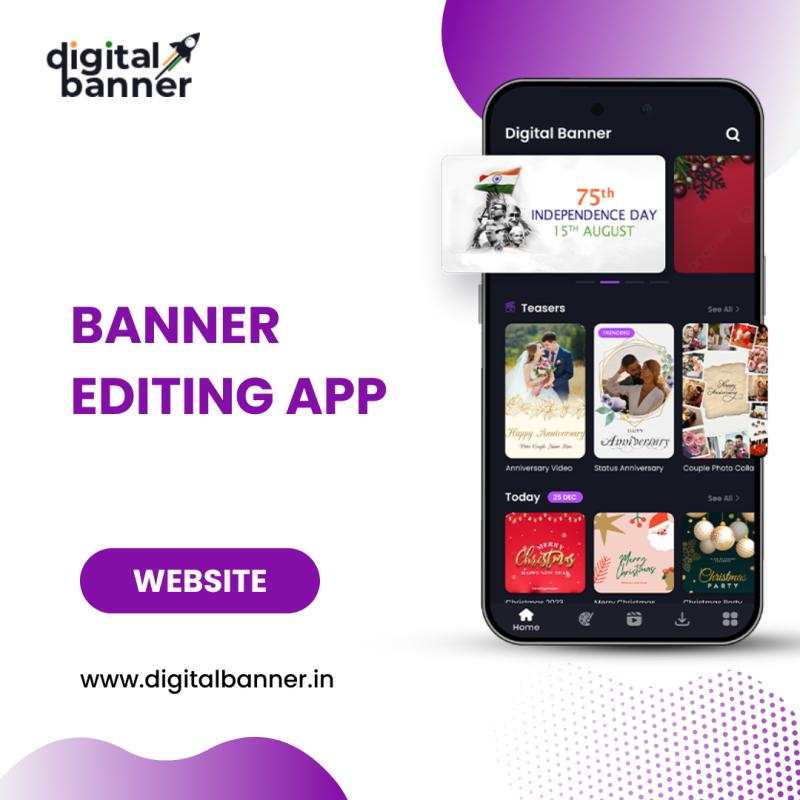
Creating custom banners for websites can significantly enhance the visual appeal of your site and engage visitors. With a banner editing app, even those with little design experience can easily create professional and attractive banners that align with their branding and messaging. In this comprehensive guide, we’ll explore how to create custom banners for websites using a banner editing app, particularly focusing on the Digital Banner app, available for both Android and iOS devices.
Whether you're a business owner, marketer, or website creator, understanding the tools and techniques for creating effective banners is crucial. Let's dive into the process of designing custom banners step-by-step, including tips, best practices, and features of the Digital Banner app that will make banner creation a breeze.
1. Why Custom Banners are Essential for Websites
Before we dive into the specifics of how to create banners, it’s important to understand why custom banners matter for websites. Custom banners serve as a visual representation of your brand, products, or services. A well-designed banner can help grab your visitors' attention, promote key messages, drive traffic to specific pages, and increase conversion rates.
Here are some reasons why custom banners are essential for websites:
- Branding: A banner reflects your website’s aesthetic and reinforces your brand identity through colors, logos, and fonts.
- Visibility: A custom banner draws the attention of your visitors, increasing the likelihood that they’ll notice and interact with your content or offers.
- Promotion: Banners are ideal for promoting sales, special offers, and events, guiding users to important information.
- Navigation: Custom banners can also serve as navigational elements, guiding users to other areas of your website.
2. Understanding the Basics of Banner Design
When creating custom banners, there are a few basic design principles to keep in mind:
- Simplicity: A banner should communicate its message quickly and effectively. Avoid cluttering the design with too much text or too many images. Keep the focus on the key message or call to action (CTA).
- Size and Format: Different websites and platforms require different banner sizes. Common banner sizes include leaderboards (728x90), skyscrapers (160x600), and full-width banners (1920x1080). The Digital Banner app allows you to customize the dimensions of your banners according to your needs.
- Typography: The text on your banner should be easy to read and appropriately sized. Use clear fonts that align with your branding, and make sure there’s enough contrast between the text and background.
- Visual Hierarchy: Use design elements such as size, color, and positioning to create a visual flow that leads the viewer’s eye through the banner.
- Consistency: Ensure that your banner aligns with the overall look and feel of your website, using matching colors, fonts, and design elements.
3. How to Use a Banner Editing App to Create Custom Banners
Creating a custom banner with a banner editing app like Digital Banner is straightforward. Here’s a step-by-step guide to help you design a stunning banner for your website.
Step 1: Download and Install the Digital Banner App
First, you need to download the Digital Banner app from either the Google Play Store or the App Store depending on your device. The app is available for both Android and iOS, making it accessible to a wide range of users.
Step 2: Choose a Template or Start from Scratch
Upon opening the app, you’ll be presented with a variety of pre-designed templates tailored to different types of banners, including promotional, event, social media, and business banners. These templates serve as a great starting point, especially if you don’t have much design experience.
If you prefer to create a completely unique design, you can start from scratch. Select your banner size or use the custom size option to input the dimensions you want for your website banner.
Step 3: Customize Your Banner
Once you’ve chosen your template or started a new project, it’s time to begin customizing your banner. The Digital Banner app offers a variety of features to help you design a banner that meets your needs:
- Add Text: Use the app’s text editor to insert and customize your message. You can change the font, size, color, and position of the text to fit your design.
- Insert Images: Add logos, product images, or stock photos to your banner. The app allows you to resize and reposition images to fit your layout.
- Apply Filters and Effects: Enhance your banner’s visual appeal by applying filters or adjusting the brightness, contrast, and saturation of your images.
- Use Icons and Stickers: The app includes a library of icons and stickers that you can drag and drop onto your banner for additional visual interest.
- Adjust Colors: Customize the background color of your banner or use gradients and patterns to make it stand out. You can also use the app’s color picker tool to match the banner colors to your website’s branding.
Step 4: Finalize Your Design
After you’ve made all the necessary adjustments, it’s time to review your banner design. Check for any typos or layout inconsistencies. Ensure that the banner is clear and that the message is easy to read. You can use the preview feature to see how your banner will look on your website before finalizing it.
Step 5: Save and Export Your Banner
Once you’re happy with your banner, it’s time to save and export it. The Digital Banner app allows you to export your design in various file formats, including PNG, JPEG, and PDF, depending on your needs.
You can then upload your banner to your website or use it in your marketing campaigns. The app also allows you to save your project for future edits, which can be useful if you want to create multiple banners for different website sections or promotions.
4. Best Practices for Banner Design for Websites
While the Digital Banner app provides all the tools you need to create custom banners, there are a few best practices to keep in mind when designing banners for websites:
- Focus on a Single Message: Make sure your banner has one clear and concise message. If it’s a promotional banner, highlight the sale or offer. If it’s an informational banner, keep the message straightforward.
- Include a Strong Call to Action (CTA): A banner is only effective if it prompts action. Include a CTA, such as "Shop Now," "Learn More," or "Sign Up," to guide visitors toward the next step.
- Keep It Mobile-Friendly: Ensure that your banner looks good on mobile devices as well as desktops. The Digital Banner app allows you to adjust your design for different screen sizes.
- Avoid Overcrowding: Don't overload your banner with too much information. Focus on the essentials to keep it clean and professional.
- Test Your Banner: Before launching your banner, test it on different devices and browsers to ensure it displays correctly. Consider A/B testing different banner designs to see which one performs best with your audience.
5. Common Banner Design Mistakes to Avoid
Even with the best banner editing tools at your disposal, it’s easy to make some common design mistakes. Here are a few things to watch out for when creating custom banners:
- Too Much Text: A banner is meant to convey a message quickly, so keep the text brief and to the point. Avoid overcrowding your banner with too much text.
- Unreadable Fonts: Choose fonts that are easy to read, especially when viewed on smaller screens. Fancy fonts may look stylish but can be hard to decipher.
- Ignoring Branding: Make sure your banner aligns with your website’s overall branding. Use consistent colors, fonts, and logos to ensure your banner is cohesive with the rest of your site.
- Clashing Colors: Avoid using colors that clash or make the text hard to read. Stick to a color palette that complements your brand and enhances readability.
- Lack of Focus: Ensure that your banner has a clear focal point, whether it’s a CTA, image, or headline. Avoid distracting elements that take attention away from the main message.
Conclusion
Creating custom banners for your website doesn’t have to be complicated. With the right tools, like the Digital Banner app, you can easily design eye-catching, professional banners that enhance the user experience and drive engagement on your site. By following the steps outlined in this guide and keeping design best practices in mind, you can create banners that are not only visually appealing but also effective at promoting your products, services, or messages.
Start by downloading the Digital Banner app, and begin designing your custom banners today. Whether you’re new to design or a seasoned pro, this app provides everything you need to create banners that stand out and contribute to your website’s success.
Post Your Ad Here
Comments (1)
The Boss Baby Club5
Boss Baby Club daycare in Panchkula has been masterfully prepared with the unique requirements of young kids in mind. The assurance of security and all-around care is delivered. The curriculum has also been the only one curated to satisfy every need of every kid because Boss Baby Club thinks it is distinct from something else of every young mind.