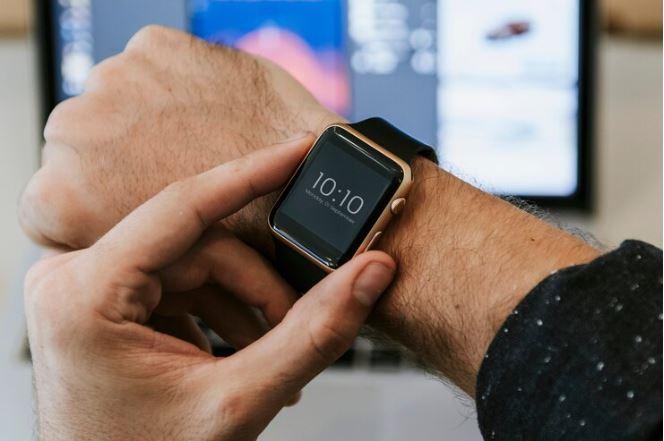
Are you having trouble with your Apple Watch not
connecting to WiFi? This issue can be frustrating, especially if you rely on
your watch to stay connected without your iPhone nearby. There are many reasons
this might happen, like software problems, incorrect settings, or WiFi network
issues. Search for Apple Watch WiFi
Connectivity Issues, we’ll talk about some common causes of this problem
and simple ways to fix it. Whether it’s a quick adjustment or a deeper look
into your watch's settings, we’ll help you get your Apple Watch connected to
WiFi again. Let’s get started!
Here are some common reasons why your Apple Watch
might not connect to WiFi:
WiFi Network Compatibility
The Apple Watch can only connect to 2.4GHz WiFi
networks, not 5GHz ones. If your network is 5GHz, the watch won’t connect.
Incorrect Password
If the WiFi password saved on your iPhone is
wrong, your Apple Watch won’t connect to that network.
Outdated Software
An old watchOS version can cause connectivity
issues. Keeping your Apple Watch updated is essential.
Bluetooth Interference
Sometimes, Bluetooth issues can disrupt the
handoff between your iPhone and Apple Watch, preventing the watch from
connecting to WiFi.
Network Settings on Your iPhone
The Apple Watch relies on your iPhone to share
WiFi settings. If your iPhone isn’t connected properly, the watch won’t be able
to connect either.
WiFi Signal Issues
If the signal is too weak or the network is
unstable, your Apple Watch might fail to connect.
Hardware Problems
In rare cases, a hardware issue in the Apple
Watch’s WiFi antenna can prevent it from connecting.
By identifying the reason, you can take the first
step to solve the problem.
Here are some of the quick fixes that may help
you to fix WiFi issues on Apple Watch:
Compatible Wi-Fi for Apple Watch: It may sound
weird, but your Apple Watch can only connect to an 802.11b/g/n 2.4GHz Wi-Fi
Network. If the network you’re trying to connect doesn’t match these standards,
your watch might not connect and report an error.
Turn Off Mirror iPhone Feature: When Mirror
iPhone is enabled, and both your Apple Watch and iPhone are in Bluetooth range,
turning on Airplane Mode on one device will make another to follow the same. So
if your iPhone is on Airplane Mode, your Apple Watch should have it enabled.
And that might be the reason you’re not able to connect to Wi-Fi. To turn this
feature off. Launch the Watch app on your iPhone. Go to the General section.
Select Airplane Mode. Toggle off Mirror iPhone. After disabling it, try
connecting to the Wi-Fi network.
Turn Wi-Fi OFF/ON: Switching Wi-Fi on and off is
the quickest way to fix this issue. At some point, it may seem silly, but doing
it actually removes minor issues in the Wi-Fi system and freshens your watch’s
ability to perform wireless functions. After turning it off, then on, try
connecting to a network and check if it’s working.
Forget a Wi-Fi Network and Reconnect: To do so on
your Apple Watch. Swipe up on the watch face. Press and hold the Wi-Fi icon.
Tap on the Wi-Fi network you’re trying to
connect. Scroll down and tap Forget This Network. Tap Forget to confirm. Now,
turn Wi-Fi off, then on again. Tap on the same network to reconnect. Enter the
security password using your iPhone’s keyboard or gestures on your watch. Check
if you’re able to connect. If not, try another hack!
Restart Apple Watch and iPhone: Restarting both
devices should fix the issue. Press and hold the side button of your device
screen.
Slide to power off the watch. Hold down the side
button again to switch on. If still not working, move to another workaround.
Enable or Disable Airplane Mode: Turning on the
Airplane mode is an effective way to troubleshoot minor software issues and
network errors on your device. And it can also fix the Wi-Fi connection error.
Open the Settings app on your watch. Tap Airplane Mode. Toggle on Airplane
Mode. Now that it is on, restart your Apple Watch. Visit the same Airplane Mode
settings and toggle it off. Press the Digital Crown to get back to the main
screen. Now, switch on Wi-Fi and connect to the Wi-Fi network. If not working,
you should try your hands on another workaround.
Reset
Your Apple Watch: If your watch still doesn’t connect to Wi-Fi after resetting
your modem and trying all the workarounds, you can go ahead with this step.
Before proceeding, make sure you’ve backed up all your watch data. Open the
Settings app on your watch. Go to General. Scroll down and tap Reset. Tap Erase
All Content and Settings. Tap Erase All to confirm. This can also be done from
the Watch app on your iPhone. Launch the Watch app → My Watch → General → Reset
settings → Tap Erase Apple Watch Content and Settings.
Hopefully these methods can fix the connectivity
issue, in case you still have the same problem, then it's better to seek
professional assistance for your AppleWatch Repair. A professional can fix the issue properly. Before heading to
meet the repair provider, here's a few things you need to know:
Is there any warranty involved in your service?
To ensure that in case of any further damage in the future, they would cover
the damage.
What could be the repair cost? It is important to
know about the pricing at the beginning to take the decision.
Can you provide some references or customer
reviews? To ensure they have already done some repairs have a genuine
reputation and offer a quality service.
How do you handle data privacy and security? It
is very crucial to know they will handle your personal and confidential
information while repairing.
Do you offer any additional services like
doorstep Apple Watch repair? To know if they could provide the service and
repair the device at your location, in front of you.
How long does it take to fix the Apple Watch? To
make sure after how long you could get back your favorite Apple Watch on your
wrist.
Options to get connected to the repair provider
are as follows:
Apple Support through their website, app, or by
phone. They can guide you through the repair process and recommend authorized
service providers. Just enter your location to find the nearest authorized
service center that can assist you with the repair you need.
Third-Party Repair Centre, If you prefer not to
go through Apple, you can inquire at the local electronic repair shops, and
ensure they have experience with Apple Watch repairs and can provide quality
services.
Local Repair Shop: In every city, there are local
repair shops available. Local technicians may repair your Apple Watch, it can
be cheap. But not sure about the quality of the service, and whether the parts
they will use are genuine or not. It is better not to take any risk and
compromise the durability of your Apple by contacting an inexperienced
technician.
Different technical gadgets have different ways
to repair. You have to be sure the technician, whom you are planning to
contact, has enough experience to provide you the service regarding Apple Watch
WiFi Connectivity Issues. An
experienced technician can assess further damage to your device and recommend
if other repairs or replacements would be needed, everything within a given
specific time.