How to Transfer Text Messages from Android to iPhone 12
"Hi, I just ordered a new iPhone 12 Pro. I want to copy all my SMS & MMS
messages from my old Galaxy S9+ Android Phone to the iPhone 12 Pro. I can't
find a way to transfer text messages with media attached files. Is there any way to transfer both SMS & MMS messages from Android to iPhone 12? I
will appreciate it." - James
Yes. Now Backuptrans Android SMS + MMS to iPhone Transfer provides an easy way to transfer both SMS and MMS messages from Android to iPhone on computer. All these Messages(SMS & MMS) will be migrated & merged perfectly on your iPhone in a few minutes. Transferring messages attachments is also supported. You can even choose to transfer all messages to iPhone or just transfer the conversation with a certain friend as you want.
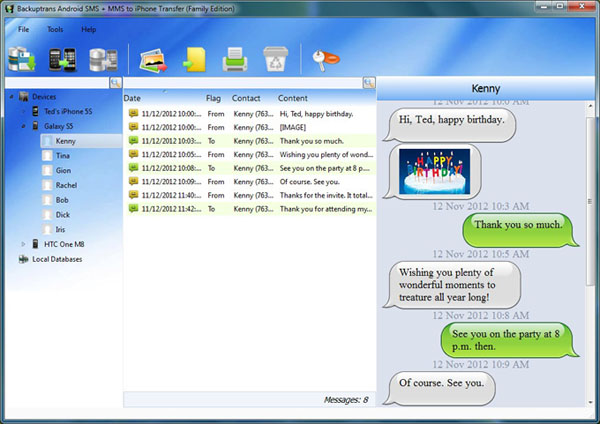
The following tutorial shows you how to transfer text messages from android to iphone 12 step by step:
Step 1: Install and run the Backuptrans Android SMS + MMS to iPhone Transfer software on computer then connect your
Android & iPhone to computer with USB cable. The software will
read all SMS MMS messages from your Android & iPhone and show them
on its main interface.
Step 2: Click the Android device in Devices list. Turn to top toolbar and press "Transfer Android SMS to iPhone" button or go File -> Transfer Android SMS to iPhone.
Tip: Or you can right-click the Android in Devices list and then choose "Transfer Android SMS to iPhone".
Tip: Or you can right-click the Android in Devices list and then choose "Transfer Android SMS to iPhone".
Step 3: Select an iPhone you want to transfer SMS Messages to. Click Confirm to continue.
Step 4: Waiting for iPhone to restart and refresh messages itself. you will see all your text messages saved on your iPhone after restarting it.
Done!
More guides:
Advertise on APSense
This advertising space is available.
Post Your Ad Here
Post Your Ad Here
Comments