How to Restore Lost or Deleted iPhone Contacts on Mac
"Yesterday I updated my iPhone 4S to iOS 7, what made me sad is that all contacts were lost from iPhone after updating to the latest iOS system. They are very important to me. Is there any way to get them back? Please help!"
- Joe asked in Apple support communities.
"I've accidentally deleted all contacts from iPhone. How can I recover them?"
- Arter asked in a forum
Most people may lose their iPhone contacts for various reasons just as Joe and Arter said above. Tons of reasons may lead you to lose iPhone contacts, updating, jail-breaking, fault operation, device broken...Actually, lost or deleted iPhone contacts can be restored by third-party program. If you are looking for a reliable tool to recover data from iOS devices, we recommend Aiseesoft Mac Fonelab, the iPhone data recovery software which allows you recover different files like contacts, photos, videos and notes, etc. from iPhone, iPad, and iPod. It provides three data recovery modes - "Recover Data from iOS Device", "Recover Data from iTunes Backup File" and "Recover from iCloud Backup File". Keep reading this article to learn how to get your contacts back!
Step 1. Launch Mac Fonelab.
Download, install and run this software on Mac.


Restore contacts from iPhone on Mac
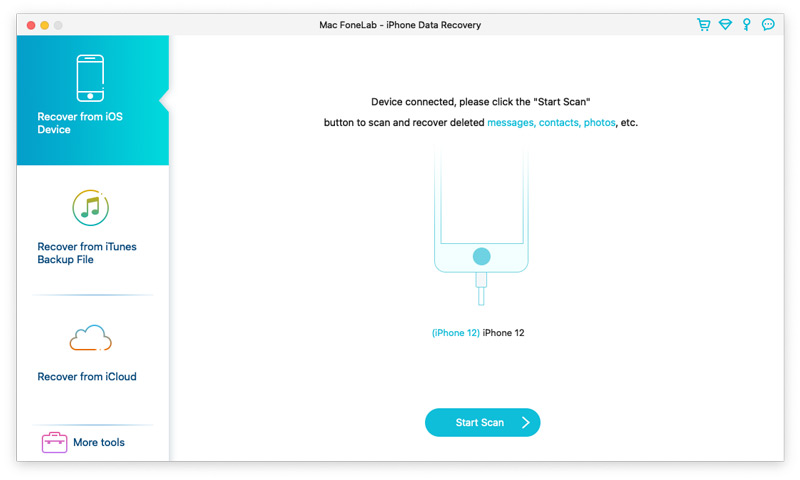
Step 2. Scan data from iPhone
Connect your iPhone to Mac, select "Recover from iOS Device" mode and click the "Start" button to begin scanning.
Step 3. Recover iPhone contacts
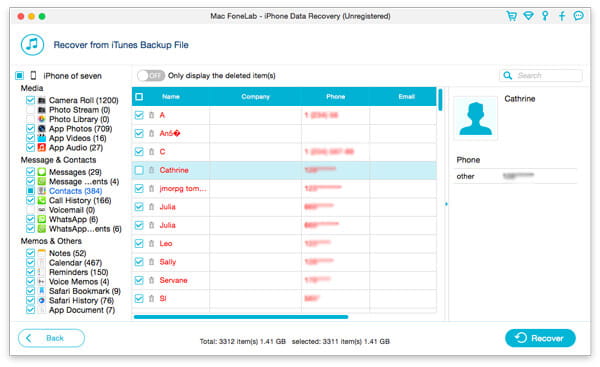
After the scanning, all found data will be displayed under categories. You are allowed to preview each file. Select and ticket contacts which you wish to recover. Then click "Recover" button to retrieve contacts from iPhone directly.
Restore contacts from iTunes Backup on Mac
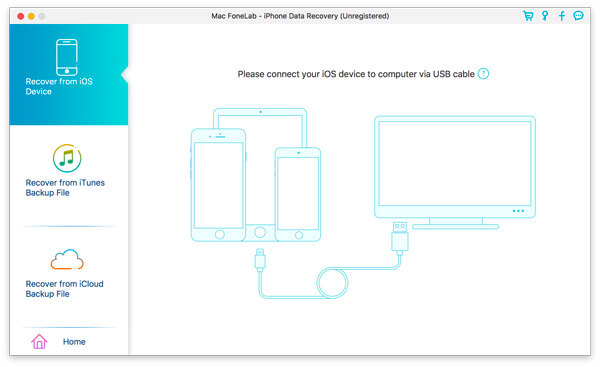
Step 2. Scan iTunes backup file
If your iPhone was lost, broken but had been synced with iTunes before, select "Recover Data from iTunes Backup" and click "Start" button.
Step 3. Select files and start recovery
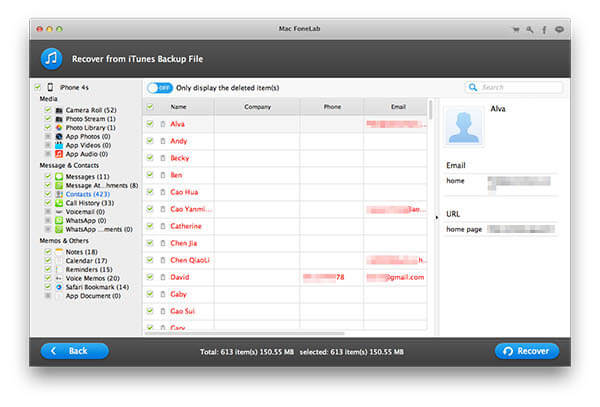
After scanning, this program displays all files found from iTunes Backup. Select your lost or deleted files from "Contact" category and then click "Recover" button. Then you can save the contacts in the specific folder on Mac.
Recover lost contacts from iCloud
Step 2. Choose Recover from iCloud Backup File
Step 3. Sign in and download the required backup file.
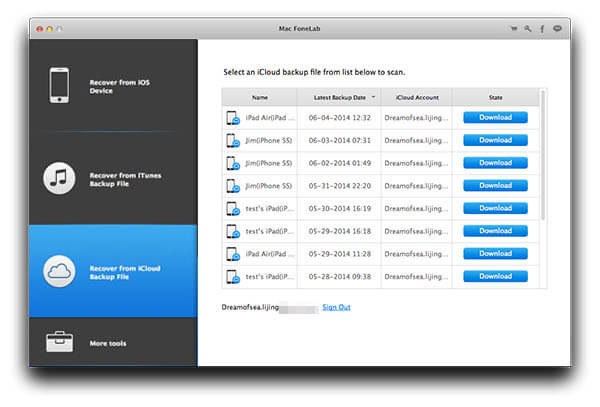
Step 4. Scan the downloaded file. Click Contacts. Select what you need and click Recover.
Tutorial: How to Restore Lost or Deleted iPhone Contacts on Mac

Comments