HOW TO PROTECT ICLOUD MAIL USING TWO-FACTOR AUTHENTICATION?
We all know that the continuous rise in the cyber attacks and online threats are increasing day by day. As of this most of the email, providers are making efforts in providing you further security measures to their users only to keep their data and information secure and safe against different cyber crimes and attacks. Are you using iCloud Mail? Are you searching for the best way to make your iCloud Mail more secure? Now, make your account more secure and protected by simply using the two-factor authentication feature which is directly provided by the Apple in their iCloud Mail.
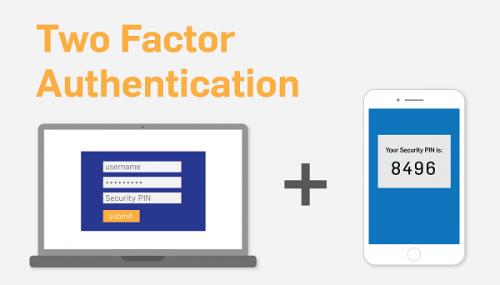
Two Factor
Authentication features always work as an additional layer of protection. After
activating the two authentication feature in iCloud Mail, Apple sends you
six-digit verification code on some trusted devices every time whenever you
signed into any of the new device for the very first time. For instances, if
anyone has an iPhone and want to log into their newly purchased Mac iCloud
account. However, it will be asked you to enter the password or other
credentials, and after that, the six-digit verification code will automatically
be displayed on your iPhone screen. Therefore, doing this will help you in
protecting the security of your iCloud Mail.
Furthermore, Trusted
devices might be your iPhone, iPod, touch, or Mac which you have already signed
in via two-factor authentication. Thus, Apple believes that those devices as
the Trusted device and uses it to verify your identity using a six-digit
verification code on it whenever user sign in on a new device or any other web
browser. Here are some simple and easy steps which help you in activating the
two-factor authentication on your iCloud Mail, you need to follow the step by
step instructions which is discussed below. ‘
Best ways to Turn On
Two-Factor Authentication to Secure iCloud Mail
Presently, Only Apple
provides two-factor authentication for their iCloud users with at least one
device who have iOS 9 or above. If you are having one such device and facing
problem in enabling two-factor authentication, follow the below-given steps in the
exact sequence to avoid trouble and save lots of time: Here how to do it:
For iOS or above
versions
1. Firstly, navigate to the ‘Settings’ tab to
launch iOS settings on your iOS device.
2. After that, click on the ‘Your Name’ tab.
3. Then, click on the ‘Password & Security’
button.
4. Next, click on the ‘Turn on Two Factor
Authentication’ option.
5. Press the ‘Continue’ button to continue the
process.
For iOS 10.2 or
earlier versions
1. Initially, click on the ‘Settings’ icon to
open the iOS settings o your device.
2. Then, click on the ‘iCloud’ tab.
3. After that, click on your ‘Apple ID’ to open
more options.
4. Now, click on the ‘Password & Security’
tab.
5. Press the ‘Turn On Two Factor Authentication’
button.
6. Click on the ‘Continue’ option.
Probably, you might be
asked to answer your Apple ID security questions. Answer that promptly.
Mobile Number
Verification
After completing the
steps mentioned above, you will have to provide your registered mobile number
to verify it. Here how to do it:
1. Here, type your mobile number in which you
want to receive the verification codes when you want to sign into the iCloud
Mail account.
2. you can receive codes either via text message
or phone call.
3. After that, click on the ‘Next’ option it will
send you a verification code to the registered mobile number.
4. Then, type the verification code which you
receive on you already receive on your phone number just to verify it and
activate Two Factor Authentication Feature.
Shery Williams is an
employee at a top email service provider company in the day, and a
technical writer at night. She is passionate about writing troubleshooting
tips, beginner’s guides, news, and other articles on varied topics. She has
written majorly on zoho email
support, iCloud email
support, comcast email and sbcglobal email.

Post Your Ad Here
Comments