Fix: ‘Component not Updated’ Error on Chrome
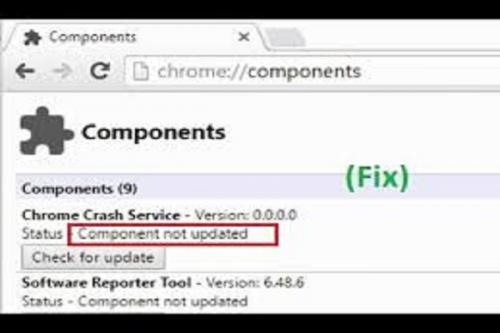
The Google Chrome browser is one of
the best and most popular browsers. It offers you excellent speed,
multi-platform compatibility, and ease of usage that attracts a number of
users. But according to the users, they have come across the “Component not updated”
error while attempt to upgrade their Flash Player. If you want to fix this
error, then here are some fixes.
Remove Problem-Causing Cache
You should follow these instructions
given below:
- Press on the
Windows and R keys simultaneously to launch the Run dialog.
- Thereafter,
insert ‘appdata’ into it and select the OK button to open the folder of
Cache.
- Go to the
folder of ‘Local’ and double-click on it then choose the folder of Google.
- Then select the
folder of Chrome and open it.
- Later, select
the folder of User Data.
- You should
right-click on the folder which has the name of the module, then choose
the Delete button.
- Now, select the
Yes button into the pop-up yo confirm your action and check whether the
problem continues.
Update Flash Player Component
Here are the steps to updating Flash
Player component:
- You should
launch Google Chrome and start a new tab.
- After that,
input the following address into the address field: chrome://components/
- Hit the Enter
key
- Go to the
bottom of the list then choose the button of ‘Check for Updates’ beneath
the “Adobe Flash Player “section.
- It is possible
that the text titled “Component not Updated” would be shown beneath it.
- Then launch a
fresh tab then visit the site of “Adobe Flash Player.”
- Select the
button of ‘Install Now.’
- After the
download completes, click on the file and the installation will begin.
- Once you finish
the installation, reboot the browser then return to the screen of
‘Components.’
- You should
choose the button of ‘Check for Updates’ beneath the “Adobe Flash Player”
section again then a “Component Downloading” text will be shown.
- Now, the
component will be upgraded!
Update Other Components
Update other components in the
following ways:
- Firstly, launch
the Chrome browser and invoke the new tab.
- After that,
input: chrome://components/
- Press Enter.
- You should
choose the button of ‘Check for Updates’ for all the components and wait
for them to be upgraded.
- After a while,
a few of them might display “Component not Updated.” Update their
components through their respective websites.
With the above steps, you can fix the
“Component not Updated” on Google Chrome. If nothing helps, you can try a third-party
repair application to fix any corrupt files.
Sam John is
a self-professed security expert; he has been making the people aware of the
security threats. His passion is to write about Cyber security, cryptography,
malware, social engineering, internet and new media. He writes for McAfee
security products at mcafee.com/activate.
Source : Component
not Updated
Post Your Ad Here
Comments