Customizing Designs with Silhouette Cameo 5 Software
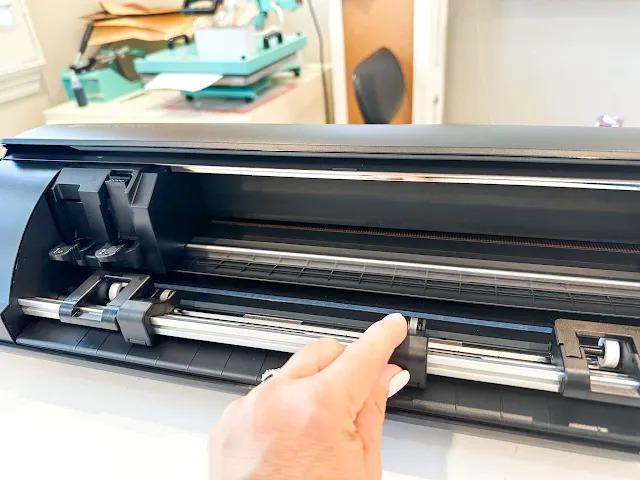
Silhouette Cameo 5 is a perfect pick for customizing designs for various projects. Even a beginner can use this machine, thanks to the presence of a user-friendly interface. Users can develop unique graphics by merging text, images, and more. The software enables accurate adjustments, so users can easily adjust shapes, colors, and sizes to fit their needs. It makes sure that the design matches a user’s particular needs. By getting familiar with the features and steps to use this tool, individuals can bring their creative ideas to life easily.
Major Silhouette Cameo 5 Features You Should Know
Some of the major features of Cameo 5 are as follows:
Enhanced Cutting Performance
The presence of enhanced tool carriage and motor systems offers more accuracy, especially for complex cuts. It is capable of cutting thick materials up to 3 mm smoothly (using compatible tools). There is also a matless cutting feature for long designs—perfect for vinyl or heat transfer.
New Electrostatic Mat (Cameo 5 Plus)
Cameo 5 Plus holds fine materials, including fabric and copy paper in appropriate positions with the help of static electricity. It does not require a cutting mat, and there is no warping and shifting amidst cuts.
Smart Auto Adjusting Tool System
Cameo 5 Pro features a machine that is capable of tracking which tools are inserted. In addition, it contains a dual carriage that allows you to cut, sketch, or emboss in one go.
Wireless Connectivity
For wireless cutting, a default Bluetooth is available in Cameo 5. It can be easily connected to your desktop PC or Mac without cables.
Wider Cutting Area (Cameo 5 Plus/Pro)
The machine contains a spacious cutting area that is ideal for signs, large decals, banners, etc. Here’s an idea:
Cameo 5 Standard: 12 in (30.5 cm)
Cameo 5 Plus: 15 in (38 cm)
Cameo 5 Pro: 24 in (61 cm)
If the standard one isn’t enough, you may opt for Plus or Pro.
Print and Cut Enhancements
Cameo 5 features an improved registration mark reading for better alignment. It ensures quick and reliable print and cut workflows.
Built-in Roll Feeder and Crosscutter
Silhouette Cameo 5 consists of a roll feeder for vinyl or HTV. It extends up to 60 feet long. To trim vinyl rolls, a crosscutting is available at the back of this machine.
Silhouette Studio Software Integration
Cameo 5 Pro has instant access to a powerful design suite. It features vector editing tools, font control, SVG support (with Designer Edition), and a library for preserving designs.
Cloud Syncing and Mobile App
Silhouette Cameo 5 helps you save designs to the cloud. Plus, you can use the Silhouette Go App to send designs to cut from your phone or tablet.
Tool Compatibility
Cameo 5 supports several specialty tools, including AutoBlade 2, Rotary Blade, Kraft Blade 2, embossing, and etching tools.
Tool Adapter System
Silhouette Cameo 5 features tool adapters for compatibility with older tools. It is a handy resource for individuals who have upgraded from old Silhouette machines.
Improved Matless Cutting
The Cameo 5 machine allows the matless cutting of materials, such as cardstock. It makes use of a pop-out cut feature to leave designs over the backing sheet.
Repeat Job Function
Cameo 5 features an onboard button that enables a swift repeat of the previous cut job. Interestingly, there is no need for re-sending from the software.
Adjustable Pinch Rollers
Silhouette Cameo 5 consists of a new roller system. It enables precise manual adjustments for feeding materials of different widths.
Multi-Language Support and Software Updates
Silhouette Studio supports several languages. It also provides frequent updates like adding new tools. Besides, it enhances material compatibility.
Steps Involved to Customize Designs Using Silhouette Cameo 5
Below are the steps to be followed to customize designs using Silhouette Cameo 5:
Step 1: Installation of Silhouette Studio Software
First, you’ve got to install the Silhouette Studio software by downloading it from the official site. Launch it when done. Now, you may create a free Silhouette account or log in (if you already have one).
Step 2: Set Up Your Machine
Next, you may connect the Cameo 5 using USB or Bluetooth and turn on the machine. Later, navigate to the ‘Send’ tab in the software to confirm machine recognition.
Step 3: Create or Import Your Design
Users may start from scratch by using drawing tools, such as circles, lines, freehand, and rectangles. Individuals can use shapes and adjust them with the help of subtracting, offsetting, or welding.
Alternatively, you can import a design by choosing File > Open or File > Import. Some of the supported formats are JPG, PNG, and SVG (SVG needs either the Designer Edition or higher versions). One can use the trace tool to convert images into cut lines if necessary.
Step 4: Customize Your Design
You can resize a design by dragging the corner boxes. Also, use the handle available in the selection box to rotate designs. You can also change colors and line styles in the ‘Fill’ and ‘Line Style’ panels.
Individuals can use ‘Edit Points’ (right-click > Edit Points) to tweak individual sections. Organize by adding layers or grouping elements.
Step 5: Set Page and Material Settings
Users can change the size and orientation of the mat by choosing the ‘Page Setup’ panel. Select a suitable material size and type as well. If you are using print-and-cut, activate registration marks.
Step 6: Prepare for Cutting
You have to visit the ‘Send’ tab and select a material type. It can be vinyl, cardstock, and HTV. Tweak the blade’s speed, force, and depth, too. Utilize a test cut to check the settings.
Step 7: Load Material and Cut
Users may place the material over the cutting mat and load it into the Cameo. Now, click ‘Send’ in the software. The machine will cut your custom design afterward.
Step 8: Finalize Your Project
You may unload the mat and weed. It involves the elimination of excess material. Users can apply the transfer tape (in the case of vinyl) or press (for HTV). The final step deals with transferring the design to your target surface.
Perks of Using Silhouette Cameo 5 for Design Customization
Some of the benefits of using Silhouette Cameo 5 for design customization are as follows:
Creative Freedom
The Silhouette Cameo 5 software offers a huge creative freedom for users. Both experienced designers and beginners may take advantage of intuitive tools to develop personalized designs. Users will be able to begin new projects or alter templates. To create a truly unique design, you have to customize shapes, text, sizes, and colors.
Cost-Effective Crafting
The Cameo 5 software is very cost-effective since it allows users to create their own designs and materials. You will be able to create stickers, labels, home decor, invitations, or event signage at home. It lets users generate exactly what they need in times of urgency. The software is useful in developing unique items for parties, weddings, small businesses, and school projects.
Support for a Wide Range of Materials
Cameo 5 provides limitless creative possibilities and supports many different materials, including heat transfer vinyl, sticker paper, fabric, cardstock, and felt. Users will be able to design t-shirts, wall decals, cards, and planner stickers. They can also cut fabric for sewing purposes. The machine’s adaptability makes it an ideal option for both professionals and amateurs in crafting projects.
Easily Usable Design Tools
The Silhouette Studio Software is pretty easy to use and possesses sturdy features. Individuals will be able to drag and drop images, rotate, resize, and align elements. Tools like weld, trace, offset, and text editing are helpful in arriving at professional results. Additionally, several software versions are available that meet varying user needs.
Precision and Accuracy
Cameo 5 machines provide excellent cutting accuracy. In addition, complex designs can be cut smoothly with the help of a smart blade system and a powerful motor. Cameo 5 ensures screen precision and minimizes errors and material waste. The machine is essential for detailed vinyl projects, fine paper crafts, and custom stickers.
Print and Cut Functionality
The software contains a notable print and cut feature. So, users can easily print their designs by themselves. Cameo 5’s accuracy makes it suitable for creating personalized stickers, labels, and tags. A major highlight of this machine is that it saves valuable time and improves project quality, especially for tiny product packaging or planner accessories.
Personalization for All Occasions
Customizing designs enables users to personalize them for every occasion. You can add names, dates, monograms, or messages to gifts and decors. Creations are always more meaningful when they are tailored, not generic. Cameo 5 (backed by Silhouette Studio) aids in creating highly personalized designs for occasions like birthdays and weddings.
Conclusion
Silhouette Cameo 5 offers numerous opportunities for creativity. The ability to customize designs without hassle improves innovation. Also, it allows users to express their ideas in a visually pleasing manner. The lack of too much complexity allows even beginners to use the software like a cakewalk. Get yourself a Silhouette Cameo 5 to convert your artistic visions into reality!
Post Your Ad Here
Comments