VPN Error 619 Explained
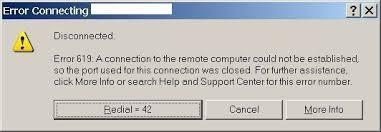
Errors encountered when establishing a remote connection is often difficult to solve. But before even delving into a possible solution, it is important that the problem is understood first. Once analyzed, it will be easier to pinpoint the real cause of the problem and resolve it.
Error 619 usually comes with a short explanation whenever it appears on the screen. It normally goes, “A connection to the remote computer could not be established.” This particular error message clearly indicates that the error lies within the two machines that are trying to transfer data between each other. It usually happens when a computer tries to connect via a VPN or virtual private network.
There are many reasons why an error message like this occurs. It can be caused by one or more of the following instances:
1. There are more than two VPN connections set up on the computer.
Two VPN connections can only mean IP address problems. So to ensure that there’s no other connections active, restart the computer and go to the Networks section in the Device Manager. Make sure that there are no connections on the auto-connect mode.
2. The Antivirus software or Firewall programs are blocking the connection.
It won’t be surprising to discover later on that your own protection software is blocking the connection. Oftentimes, the security tools embedded in these programs are powerful enough to shut off any connection from the outside and vice versa.
3. Faulty VPN setup
If the two reasons above are not causing the problem, then it could be because of the faulty way that the VPN software was setup on the computer. This can be due to an incomplete installation or wrong settings. Either way, a full reinstall of the VPN client software is going to help. If it still doesn’t, contact your network administrator and ask for the correct settings.
4. Problems with the remote computer.
Although less likely, the problem may be caused by the remote computer that you’re connecting to. It could be blocking your computer from connecting. To resolve the issue, be sure that your computer has all the protocols necessary and that you’ve passed every authentication check. This way, you can successfully establish a secure connection.
These are the common reasons why Error 619 appears on a computer. Knowing all about these causes makes the troubleshooting steps easier and a lot faster.
Possible Solutions to VPN Error 619
If you encounter an error message saying that you can’t connect to the remote computer, then you are getting the actual Error 619 or another version of it. This connection error is usually encountered when a client computer is trying to connect to a remote computer or a server. This error could be caused by many things and the solution often depends on the real cause of the problem.
Here are the most common yet simplest solutions to Error 619:
1. Disable or modify the firewall or the security settings of the client computer.
Firewalls, and sometimes antivirus software, can block the PPTP VPN connection on TCP port 1723. Some advanced security software, on the other hand, can be blocking the GRE protocol altogether. If this is the case, disabling the firewall becomes the easiest albeit a temporary solution. If taking down the firewall allowed the connection to push through, then contact your network administrator and ask for the correct settings. It’s important for the firewall and the VPN to work together.
2. By-pass the router.
Some remote computers have difficulty connecting to the host server via a VPN connection if there are routers in place. Like firewalls, routers do have security protocols embedded within the firmware. Some high-end routers are even integrated with the VPN pass-through option. Check if yours has that particular setting and if it is on a disabled state by default. If it does, then set it to enable.
3. Reinstall the VPN software.
Look for the software installed on your computer that is tasked to establish the connection to a remote host. Find it and reinstall it. That software is the one you click every time you want to set up a connection. The software could have been corrupted for one reason or another. But remember that if you do decide to uninstall and reinstall, be sure that you also have the correct settings with you.
4. Contact your network administrator.
If all possible troubleshooting steps were done on your end and the problem still occurs, then a network administrator might be able to help you. Call the person who handles the maintenance and the connection issues of the remote computer and try to troubleshoot with each other. There could be a few authentication issues on your computer that needs to be resolved so that the remote computer would no longer block you from connecting.
This post has been brought to you by Guy Galboiz
Advertise on APSense
This advertising space is available.
Post Your Ad Here
Post Your Ad Here
Comments