How To Update Windows 10 Manually
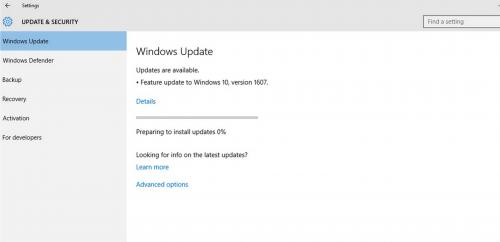
How to Update Your Windows 10 Manually in Simple and Quick Steps?
Updating your computer’s software is one of the most effective and
easy steps to make sure that your system run without any error. Whenever you
update Windows 10 on your computer, you get plenty of nee features, bug fixes,
security programs, and more. So it is always important to update your OS the
latest Windows 10 version in order to enjoy the best in class features.
Generally, your system gets to update the latest version automatically but
sometimes it does not update due to any other reason. But you can update
Windows 10 manually which is the only option and one can simply update it
within very quick steps. In this article, you will learn about the step by step
process for updating Windows 10 manually.
Here are a few simple and quick steps to manually update Windows
10:
- First of all, turn on your computer and then go to the Start menu which is available at the left bottom side of the screen.
- Now click on Settings which is available in the shape of the gear icon.
- Now Windows Settings page will open and then click on the Update and Security section.
- After that, click on the Windows Update tab in the left sidebar of the screen.
- Click on Check for Updates option and it will begin to check if there is any available update.
- Now it will begin to download the latest version automatically after finding the latest update and for this, click on Download and install now tab.
- After that, wait for fewer seconds until the Windows 10 downloads and then follow the on-screen instructions to complete the update process.
With
these steps, you may know about how to update Windows 10 manually in a
very simple and instant manner. But if you are still not competent enough to to
update manually or find any other difficulties, then contact the customer
support team for instant help.
Post Your Ad Here
Comments