how to install Volvo Vida Dice on win 7 64bit
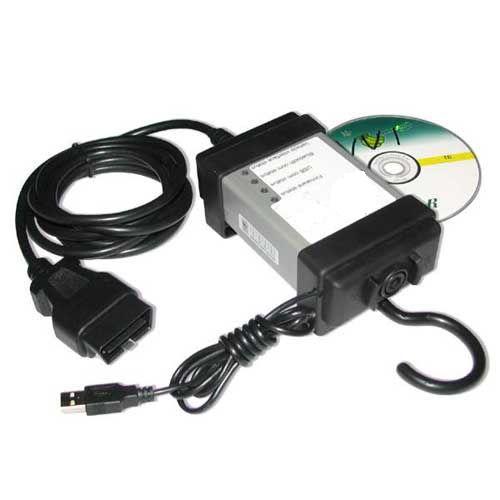 Recently, one customer feedback the error about Vida Dice software when he run the software on win 7 64bit OS. if you aslo bought a Volvo Vida Dice diagnostic tool. does Volvo Vida Dice inteface just supports Windows XP OS, 2014A Volvo Vida Dice software can run on win 7 os ?
Step 1. Copy 2014A Vida software to you pc(Windows 7 64bit PC), and Install Vida software, also Copy "Volvo vida 2014A patch file" to the desktop.
Step 2. Select Install – DVD – Vida dvdheader- Main – setup.
Step 3. After the setup is finished, select "VIDA All-in-one" to install. Select language.
Choose Destination Folder: C:\VIDA\. Click Next.
Click “OK" to accept License Agreement.
Framework 35 and security will be installed automatically.
Step 4. Then Vida software Installs Shield Wizard setup automatically. Vida Configurator for internet, click Save. Vida is configuring your new software installation, it will take 20-30 minutes.
Then you will get these icons on the desktop: Adobe Reader 8, VIDA all-in-one, Vida on web, Vida admin and Vida configurator.
InstallShield Wizard Complete, select “No, I will restart my computer later", then click “Finish". I need to install the patch firstly, and then restart the computer.
Step 5. Install Vida patch file, Unzip "Volvo VIDA 2014d tested patch" and open it, Click Install (Note: default Destination Folder is C:\, don't change it)
Note: A windows pops up reading :Do you want to allow the following program from an unkown publisher to make changes to this computer?:, click "Yes". If firewall blocks the program, click "Allow access". Patches will be installed automatically.
Step 6. Driver software Installation for Volvo Vida Dice interface
Pls Connect Vida dice adapter to the computer. and also connect the interface to your car, A dialogue pops up reading "Installing device driver software" Click it, it will install driver software, until you see DiCE-206751@0000000000 ready to use, click close.
Step 7. Restart the computer, Wait the interface icon at the lower right corner turn to green, then launch “VIDA all-in-one”, if this icon is yellow or red, please wait patiently. (This is very important).
Step 8. Check vehicle information and diagnostics for after sales. Click "VIDA all-in-one" and open it.
An IE browser will launch. Enter username "1" (number). and click Login, it needs not to register.
(Note: you cannot input the username if you do not install the patch and restart the computer.)
Advertise on APSense
This advertising space is available.
Post Your Ad Here
Post Your Ad Here
Comments