Escape Online Monitoring Using Private Browsing
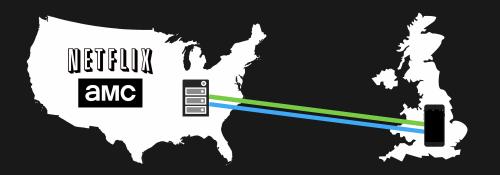
Many people became aware of internet security and privacy after the Edward Snowden incident. However, not only the NSA is spying on you, there are so many different organisations who want to know what you do on the internet. The government has an active interest in it. The security agencies want to check you out. The media industry wants to know if you are enjoying illegally obtained films or music. Hackers would be very interested to know your passwords. Even your ISP would like to know what their clients are doing. Google and Facebook would love to know your internet history so that they can sell you more ads. In short, it's a scary world out there which we don't realise.
While not all, some of these problems can surely be solved via private browsing. Private browsing is a feature which is present in every modern web browser. This is a session of browsing for which the browser would collect no data. So sites you visit will show up in your history, no password or username will be saved and whatever cookies are set on your pc during this session, all will be automatically deleted once you close this window. Ideally this should have been the case always but cookies are universally in practice and saving history has some advantages.
Now you would wish to know how to turn on private browsing. Like I said, this feature is present in every modern web browser including Microsoft Edge, Google Chrome and Mozilla Firefox. Thus, you don't need any software for this. All you need to know is to where is the setting for private browsing in these browsers.
Firefox: Open Firefox and at the top, click on File. There you will see, New Private Window. Click on it and a new private Firefox will open. The shortcut to open it is to press Control, Shift and P keys together.
Google Chrome: Open Google Chrome and click on the three vertical dots at the right top corner which opens the menu. You will see Open Incognito Window which is the equivalent of private browsing in Chrome. You can also press Control, Shift and N keys together to open it.
Microsoft Edge: Open Edge and Click on Menu. There you will find the Open New Private Window which you need to click to open the private version. The process is almost the same for Microsoft's Internet Explorer, a browser which they are not promoting anymore but still supporting.
Advertise on APSense
This advertising space is available.
Post Your Ad Here
Post Your Ad Here
Comments