How to Replace Your Tablet Screen in 5 Easy Steps
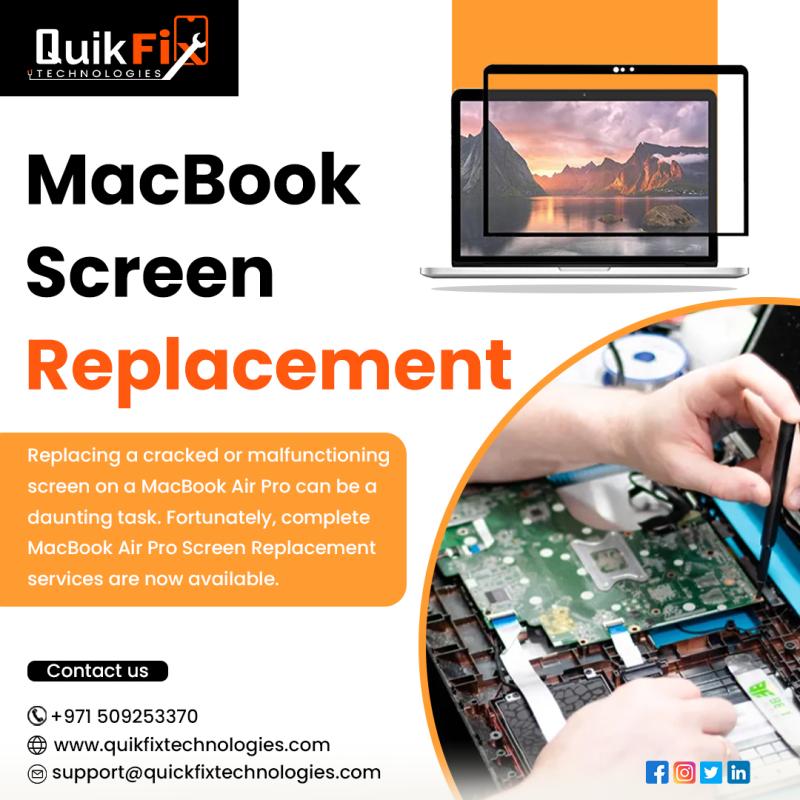
Tablet screens are prone to
damage due to their frequent use and exposure to accidental drops or impacts.
If you’ve cracked or shattered your tablet screen, replacing it yourself might
seem intimidating, but it’s not as difficult as it sounds. With the right tools
and a bit of patience, you can get your device back to working condition
without spending a fortune on professional repairs. In this guide, we’ll walk
you through the process of replacing your tablet screen in five simple steps.
Step 1:
Gather the Necessary Tools and Replacement Screen
Before you
start, you’ll need a few essential tools to complete the screen replacement
safely and efficiently & MacBook
repair services. Here's a list of what you'll
need:
- A replacement screen specific to your tablet model
- A small Phillips-head screwdriver
- Plastic opening tools or guitar picks
- Suction cups (optional, but useful)
- Tweezers
- Adhesive strips or tape
- A heat gun or hairdryer (to soften adhesive)
- A microfiber cloth for cleaning
Make sure you purchase a
high-quality replacement screen that matches your tablet model exactly. Avoid
low-quality or third-party screens that might not work correctly or fit
properly.
Step 2:
Power Down and Disconnect the Battery
Before you begin disassembling
your tablet, power it off completely to avoid any accidental damage or short
circuits. Once your device is powered off, it's essential to disconnect the
battery to eliminate any electrical current running through the components.
To do this, carefully remove
the back panel or follow any specific instructions for your model on how to
access the battery. Some tablets may require removing a few screws, while
others might have adhesive securing the back panel. Use plastic opening tools
to gently pry open the panel, ensuring you don’t damage the internal
components.
Once the back panel is off,
disconnect the battery connector by using a plastic tool or tweezers to gently
lift the cable from its socket. This step is crucial for preventing electrical
damage while you work on the screen replacement.
Step 3: Heat
and Remove the Damaged Screen
Tablet screens are typically
held in place with strong adhesive, making it necessary to use heat to soften
the glue before removal. Using a heat gun or a hairdryer, evenly heat the edges
of the tablet screen. Be cautious not to apply too much heat, as this could
damage internal components. Keep the heat moving around the edges for 1-2
minutes to ensure the adhesive softens without overheating any one spot.
Once the adhesive is softened,
use a suction cup to gently lift a corner of the screen, or insert a plastic
opening tool under the edge. Be very careful during this process, as tablet
screens are delicate and can crack further if too much force is applied. Work
your way around the edges with plastic tools or guitar picks, slowly separating
the screen from the frame.
If your screen is severely
cracked, small shards may detach during removal, so handle the screen
carefully. You may also need to disconnect ribbon cables or connectors holding
the screen to the motherboard. Use tweezers or a plastic tool to release these
connections before fully removing the screen.
Step 4:
Install the New Screen
Once the old screen is
removed, take the opportunity to clean the area around the frame and any
components that may have gathered dust or debris. Use a microfiber cloth to
wipe down the edges and ensure a smooth surface for the new adhesive.
If your new MacBook
screen replacement comes with pre-installed adhesive, you can skip the
next step. If not, apply adhesive strips or glue around the edges of the frame
where the new screen will sit. Make sure the adhesive is evenly distributed to
prevent any gaps or uneven surfaces.
Carefully align the new screen
with the tablet frame, making sure that any ribbon cables or connectors are
properly aligned with their respective sockets. Gently press the screen into
place, ensuring it adheres to the frame and sits flush. Reconnect any cables
you disconnected earlier, and double-check that all connections are secure.
Step 5: Reassemble
and Test
Once your new screen is
securely in place, it’s time to reassemble the tablet. Reconnect the battery
cable and carefully reattach the back panel. If you removed any screws earlier,
make sure to put them back in their original locations. Use plastic tools to
snap the back panel into place, ensuring it fits snugly.
Before powering on the tablet,
double-check that everything is properly reconnected and securely in place.
Once you’re confident, power the tablet back on and test the new screen. Check
for touch sensitivity, display brightness, and overall responsiveness. If the
screen functions as expected, you’ve successfully replaced your tablet screen!
Tips for a
Smooth Screen Replacement Process
- Work Slowly: Patience is key when
removing the screen and handling delicate internal components. Rushing can
lead to more damage.
- Handle the New Screen Carefully: Be
cautious when installing the new screen, as it can be just as fragile as
the damaged one.
- Follow Model-Specific Instructions: Each
tablet model may have slight differences in the disassembly and reassembly
process, so consult specific guides for your device if necessary.
- Store Small Parts Safely: Keep
screws, connectors, and other small parts organized to avoid losing them
during the process.
Final
Thoughts
Surface
pro repair and part replacement may seem daunting, but with
the right tools and careful attention to detail, it’s a manageable task. Not
only can you save money by doing it yourself, but you’ll also gain a better
understanding of your device’s inner workings. By following these five simple
steps, you can successfully replace your tablet screen and restore your device
to working order.
Post Your Ad Here
Comments